Picture this: it’s late afternoon, the overhead fluorescent lights have dimmed to their energy-saving mode, and you’re squinting at your keyboard trying to finish a critical report. Your eyes ache, your shoulders are tense, and you’ve already mistyped the same word three times. This scenario plays out daily in offices worldwide, where professionals spend eight or more hours glued to their desks, battling fatigue and discomfort with every keystroke. As workplaces evolve, so does the demand for peripherals that blend ergonomic support with modern aesthetics. Backlit keyboards have emerged as a practical solution, offering enhanced visibility that keeps you typing accurately regardless of ambient lighting conditions. Beyond mere illumination, these keyboards can reduce eye strain, minimize errors, and add a polished look to any professional workspace. This guide is designed to help you navigate the selection process with confidence, covering everything from switch types and connectivity options to layouts and design considerations. Whether you prioritize comfort during marathon work sessions, need a durable tool that withstands daily use, or want something that looks as sharp as it performs, you’ll find the insights needed to make a smart, informed choice.
Why Backlit Keyboards Enhance Productivity at Work
Working in dimly lit environments forces your eyes to constantly adjust between a bright monitor and a dark keyboard, creating a visual tug-of-war that accelerates fatigue. Backlit keyboards eliminate this contrast by casting a gentle glow beneath each keycap, allowing you to locate keys instantly without straining or breaking your focus from the task at hand. This seemingly small improvement compounds over an eight-hour workday—fewer mistyped characters mean less time correcting errors, smoother workflow, and reduced frustration during deadline-driven projects.
For professionals who spend extended hours typing reports, coding, or managing spreadsheets, the comfort benefits extend beyond visibility alone. When you’re not hunching forward to read key legends, your posture naturally improves, easing tension in your neck and shoulders. The consistent illumination also helps during video calls or collaborative sessions where overhead lights are dimmed to improve screen visibility for presentations. From an aesthetic standpoint, a subtly lit keyboard lends a modern, polished appearance to any workstation, signaling attention to detail without the flashiness associated with gaming peripherals. White or warm-toned backlighting integrates seamlessly into corporate settings, making your desk look intentional and organized rather than cluttered. Ultimately, backlit keyboards serve as a low-effort upgrade that delivers measurable gains in accuracy, comfort, and workspace professionalism throughout the workday.
Mechanical Keyboards and Key Switches: A Deep Dive for Professionals
When your keyboard is the primary tool you interact with for most of the workday, the mechanism beneath each key matters far more than most professionals realize. Mechanical keyboards have gained significant traction in office environments because they offer a typing experience that membrane alternatives simply cannot match. Unlike membrane boards that rely on a single rubber dome sheet to register presses, mechanical keyboards use individual switches under every key, delivering consistent actuation force and precise feedback with each stroke. This distinction translates directly into typing confidence—you know exactly when a keypress registers, which reduces the unconscious habit of bottoming out keys and hammering harder than necessary.
Understanding Mechanical Keyboards for Office Durability
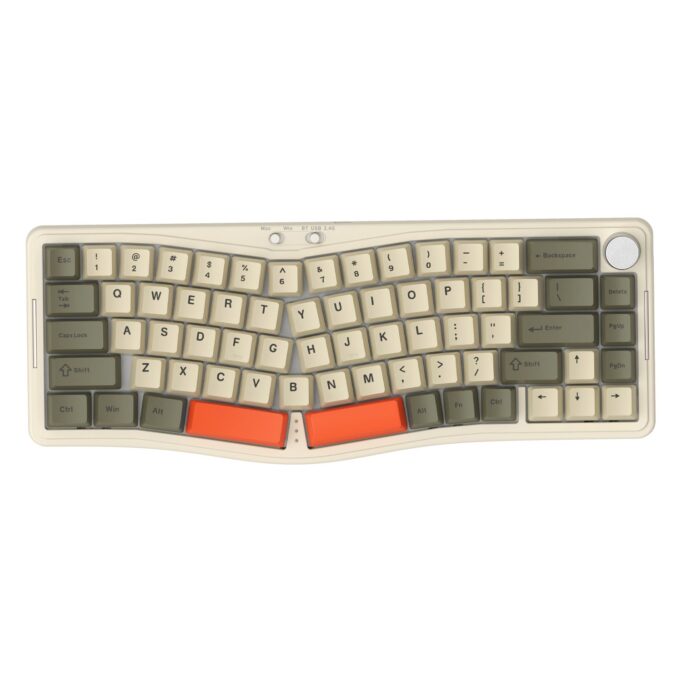
The structural advantage of mechanical keyboards becomes apparent over time. While a typical membrane keyboard begins to feel mushy and unresponsive after a year or two of heavy use, mechanical boards are rated for tens of millions of keystrokes per switch, meaning they maintain their crisp feel for years without degradation. For professionals investing in a backlit gaming keyboard they’ll use daily, this longevity justifies the higher upfront cost. The tactile feedback also plays a functional role—it trains your fingers to type with less force, reducing repetitive strain over long sessions. The build quality of most mechanical boards tends to be superior as well, with aluminum frames and PBT keycaps that resist shine and wear, keeping your workspace looking professional long after purchase.
Selecting Key Switches for All-Day Comfort
Key switches come in three primary categories: tactile, linear, and clicky. For office use, tactile switches like Cherry MX Brown or equivalents strike an ideal balance—they provide a noticeable bump at the actuation point so you feel each keypress without producing the loud click that disrupts nearby colleagues. Linear switches such as Cherry MX Red offer smooth, quiet keypresses with no tactile bump, which some typists prefer for their effortless feel during extended writing sessions. Clicky switches, while satisfying, generate noise levels that make them impractical in shared workspaces. When choosing, consider actuation force as well; lighter switches reduce finger fatigue over eight-hour days, while slightly heavier options prevent accidental presses if you tend to rest your fingers on the keys. Testing a few switch types before committing—through switch testers or in-store demos—ensures you find the feel that keeps your hands comfortable from morning through end of day.
Wireless Connectivity: Evaluating Options for Office Use
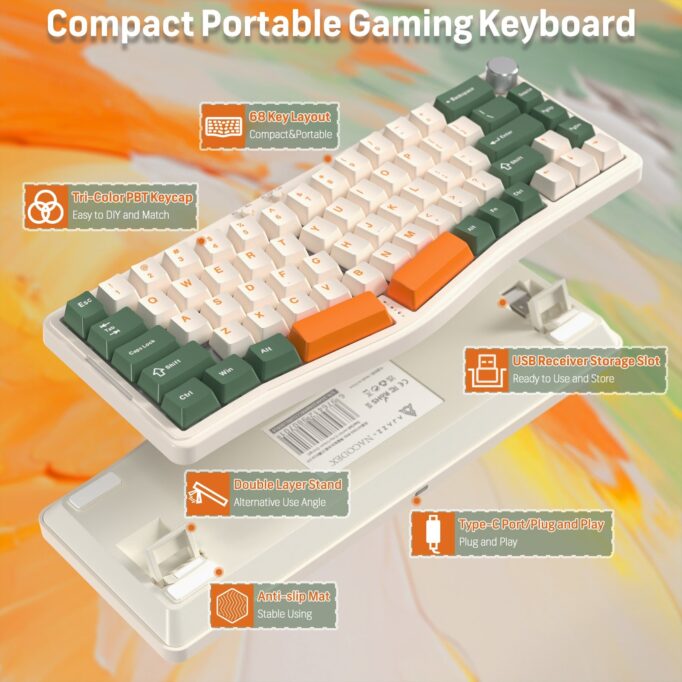
The cable connecting your keyboard to your computer might seem inconsequential, but in a professional environment where desk real estate is precious and mobility matters, wireless connectivity becomes a meaningful consideration. Modern wireless keyboards rely on two primary technologies—Bluetooth and 2.4GHz RF (radio frequency)—each with distinct trade-offs that affect daily use. Bluetooth pairs directly with your device without requiring a USB dongle, preserving precious ports on ultrabooks and docking stations, and most Bluetooth keyboards can connect to multiple devices simultaneously, letting you switch between your laptop and tablet with a single button press. RF connections use a dedicated USB receiver and typically deliver lower latency and more stable connections, which benefits professionals who cannot tolerate even momentary input lag during fast-paced data entry or coding sessions.
Advantages of Wireless Keyboards in Modern Offices
Eliminating cables instantly declutters your workspace, creating the clean, intentional aesthetic that complements a professional environment. A wireless backlit keyboard can be repositioned freely—pulled closer during intensive typing, pushed aside to make room for documents, or carried to a conference room for a presentation without fumbling with cables. This flexibility supports hot-desking arrangements and hybrid work setups where employees move between stations throughout the day. The absence of a tethered cord also reduces cable management headaches, keeping your desk surface streamlined and visually cohesive alongside other modern peripherals.
Practical Considerations for Reliable Wireless Performance
Battery life deserves careful attention when selecting a wireless backlit keyboard, since backlighting draws significantly more power than unlit alternatives. Look for models that offer adjustable brightness or auto-dimming features to extend battery longevity without sacrificing visibility when you need it most. Rechargeable batteries with USB-C charging simplify maintenance compared to disposable cells, and keyboards that function while charging ensure you’re never left without input during a critical task. Connectivity stability also varies by office environment—Bluetooth can struggle in spaces crowded with wireless signals from dozens of devices, so RF connections may prove more dependable in dense open-plan offices. Security-conscious professionals should verify that their wireless keyboard uses AES encryption to prevent keystroke interception, particularly when handling sensitive data or credentials. Testing range and reconnection speed before committing helps confirm the keyboard meets your workspace demands without frustrating dropouts.
Keyboard Layouts: Balancing Ergonomics and Style
The physical layout of your keyboard influences everything from how much desk space you reclaim to how naturally your hands rest during extended typing sessions. Choosing the right form factor isn’t purely about preference—it’s a functional decision that affects posture, efficiency, and how well your workspace accommodates other essential tools like notebooks, monitors, and mice. Professionals who overlook keyboard layouts often end up with boards that either waste valuable surface area or sacrifice keys they rely on daily, leading to workflow interruptions and awkward hand positioning that compounds discomfort over time.
Common Layouts for Professional Workspaces
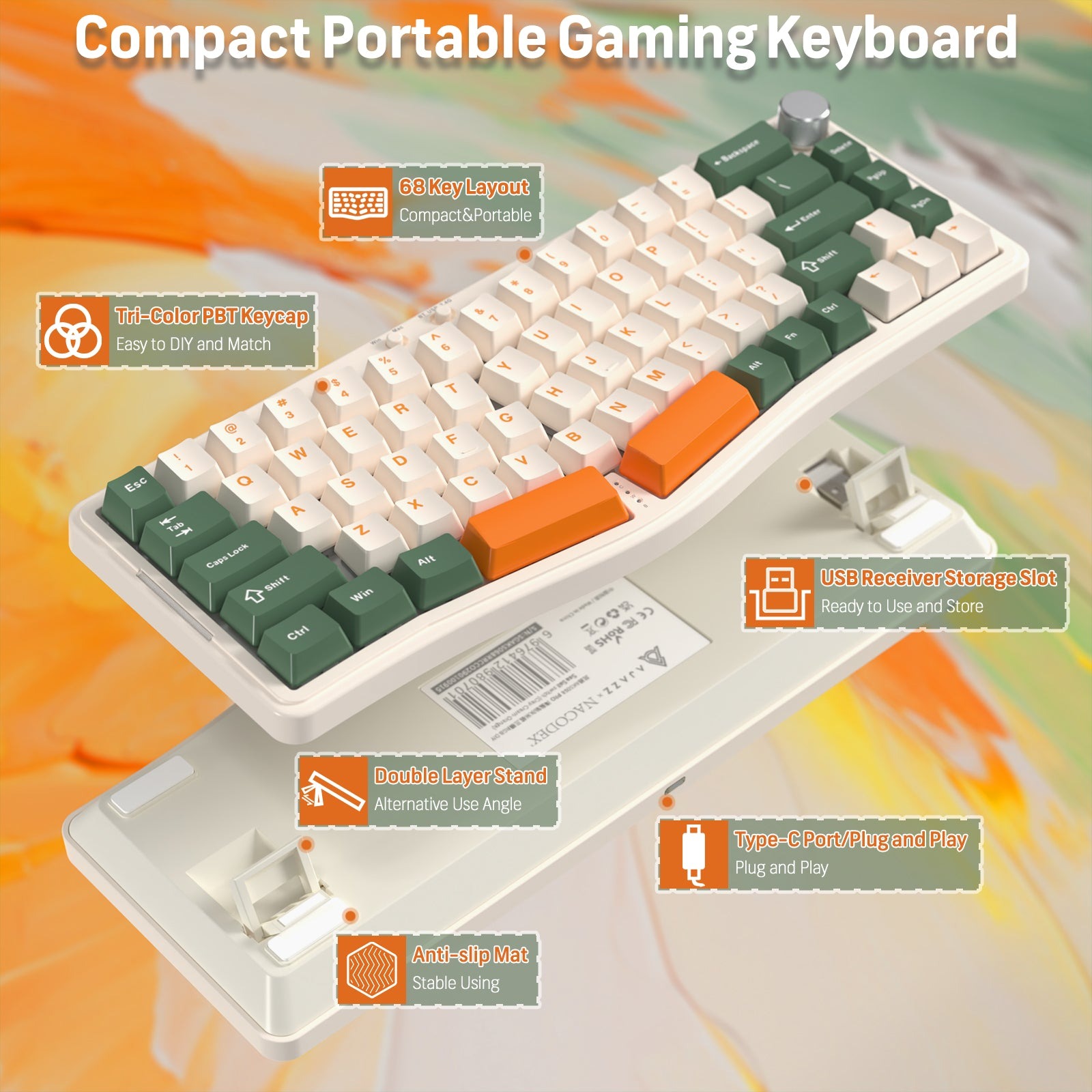
Full-size keyboards include a dedicated number pad, function row, and navigation cluster, making them ideal for accountants, data analysts, and anyone who regularly inputs numerical data. However, they push your mouse farther to the right, forcing your shoulder into an unnatural outward reach that strains muscles over hours of use. Tenkeyless (TKL) boards remove the number pad while retaining every other key, freeing several inches of desk space and allowing a more centered hand position relative to your monitor. For professionals who rarely use the number pad, this layout delivers immediate ergonomic improvement without sacrificing functionality. Compact layouts like 75% and 65% boards go further, condensing navigation keys into layered functions accessible through key combinations. Brands like ATTACK SHARK have developed compact wireless mechanical keyboards in these form factors that cater specifically to professionals seeking portability and clean desk aesthetics without compromising on build quality. These work exceptionally well in tight workspaces or hot-desking environments where portability matters, though they require a brief adjustment period to memorize secondary functions.
Ergonomics and Aesthetics in Office Design
Beyond size, ergonomic features within a layout significantly impact all-day comfort. Keyboards with a slight negative tilt or adjustable feet that allow you to find a neutral wrist angle help prevent the extension strain that contributes to repetitive stress injuries. Generous key spacing prevents your fingers from feeling cramped during fast typing, while low-profile designs keep your wrists closer to the desk surface, reducing the need for a separate wrist rest. When one is included or available as an accessory, a padded rest made from memory foam or leatherette adds both comfort and a refined visual touch. Aesthetically, slim aluminum frames with clean lines and understated backlighting blend into corporate environments without drawing unwanted attention. Neutral color palettes—matte black, space gray, or white—pair naturally with modern monitors and desk accessories, creating a cohesive workstation that looks deliberate and professional rather than cobbled together from mismatched components.
Step-by-Step Guide to Selecting Your Perfect Backlit Keyboard
With so many variables to weigh, a structured approach ensures you land on a keyboard that genuinely fits your professional needs rather than one that simply looks appealing in a product listing. Follow these steps to narrow your options methodically and avoid buyer’s remorse.
First, assess your work environment and typing habits honestly. Consider whether your office uses dim ambient lighting, whether you share space with colleagues who would notice loud keystrokes, and how many hours you spend typing continuously. These factors immediately filter out unsuitable options. Second, choose between mechanical and membrane builds based on your durability requirements and tactile preferences. If you type heavily for six or more hours daily, mechanical keyboards with tactile switches deliver the feedback and longevity that justify the investment—select a switch weight that matches your finger strength without causing fatigue by end of day. Third, decide on wireless connectivity by evaluating your desk setup and mobility needs. Bluetooth suits multi-device users with minimal interference, while 2.4GHz RF provides rock-solid stability in crowded signal environments. Fourth, select a keyboard layout that optimizes both ergonomics and available desk space. If you never touch the number pad, a tenkeyless or 75% layout immediately improves your posture by bringing the mouse closer to center. Fifth, evaluate backlighting features carefully—adjustable brightness levels let you dial illumination to match changing conditions throughout the day, and warm white tones tend to cause less visual distraction than cool blue in professional settings. Finally, consider build materials and design cohesion. An aluminum frame with neutral colorways and clean typography on keycaps ensures your keyboard complements your workspace rather than clashing with it, while durable PBT keycaps resist the greasy shine that makes cheaper boards look worn within months.
Making Your Backlit Keyboard Investment Count
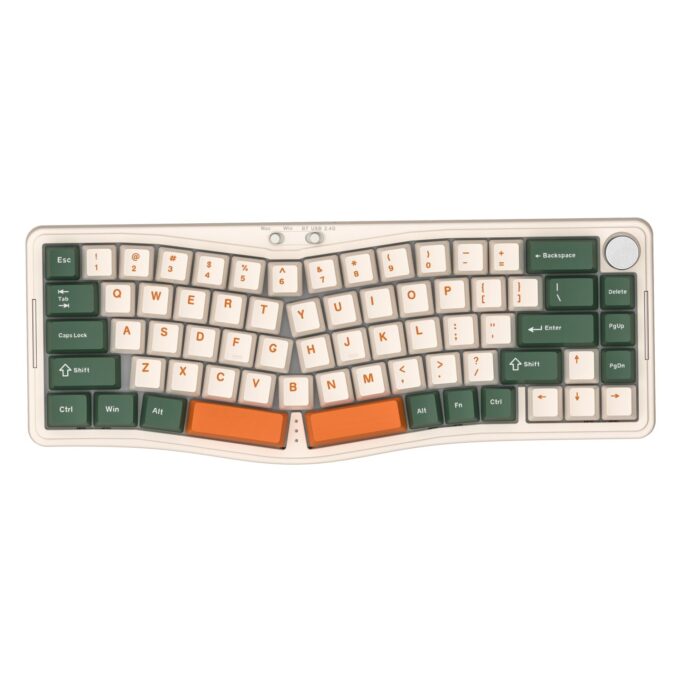
Selecting the right backlit keyboard for work isn’t about chasing features—it’s about aligning your choice with the realities of how you work every day. The visibility benefits of backlighting directly combat eye strain and typing errors that accumulate across long sessions, making it a practical upgrade rather than a cosmetic one. Mechanical keyboards paired with thoughtfully chosen key switches provide the durability and tactile consistency that professionals need from a tool they rely on for thousands of keystrokes daily, while the right switch type ensures comfort without disrupting colleagues. Wireless connectivity, whether Bluetooth or RF, frees your workspace from cable clutter and supports the flexibility that modern office arrangements demand, provided you account for battery management and signal reliability. Your keyboard layout choice shapes your posture and desk efficiency in ways that compound over months and years of use, so matching form factor to your actual workflow prevents both wasted space and missing functionality. Together, these considerations form a framework that cuts through marketing noise and leads you toward a keyboard that feels right, lasts long, and looks professional on your desk. Use this guide as your checklist the next time you’re ready to invest, and you’ll make a decision grounded in real-world needs rather than impulse.