A file arrives in a message, you open it, reply, and move on. The next morning, someone asks for the same document and you know it is somewhere on the computer — probably in Downloads, possibly saved twice, and perhaps still easier to find by scrolling through the original conversation.
That is a common weak point in desktop messaging.
Windows makes it easy to receive documents, screenshots, spreadsheets, images, and compressed files while working, but receiving a file and organizing it are two different jobs. Once messaging becomes part of daily work, the real challenge is not sending attachments. It is making sure useful files remain understandable after the conversation has moved on.
A better workflow does not require another productivity app. In most cases, it comes down to deciding what happens to a file after it leaves the chat window.
Why Messaging Files Become Hard to Manage on Windows
The Downloads folder is convenient because almost everything can go there with no planning.
That convenience works well for temporary files. It becomes less useful when a person receives several attachments every day from colleagues, customers, suppliers, project groups, or online communities.
After a few weeks, a folder can contain names such as:
document.pdf
image_4821.jpg
final.xlsx
final-new.xlsx
scan03.png
report (2).pdf
The files themselves may be important, but their names no longer explain where they came from or why they were saved.
The original conversation may contain that context. The Windows file system usually does not.
This creates a simple problem: a document that was easy to understand inside a message becomes much harder to identify once it is separated from the message.
Treat Messaging as an Inbox, Not a Permanent Archive
Chat history is useful for finding recent context. It is less reliable as the only filing system for documents that may be needed months later.
A useful way to think about desktop messaging is as an inbox.
Information arrives there. Some of it can be read and forgotten. Some deserves a short-term place on the computer. A smaller amount needs to move into a permanent project, customer, finance, or reference folder.
For users who regularly continue phone conversations from a Windows computer, a Telegram Desktop reference can also help when comparing how desktop messaging fits into a file-oriented workflow rather than treating the computer as nothing more than a larger chat screen.
The important decision happens after the attachment is opened.
If the file has continuing value, move it somewhere that still makes sense without the conversation beside it.
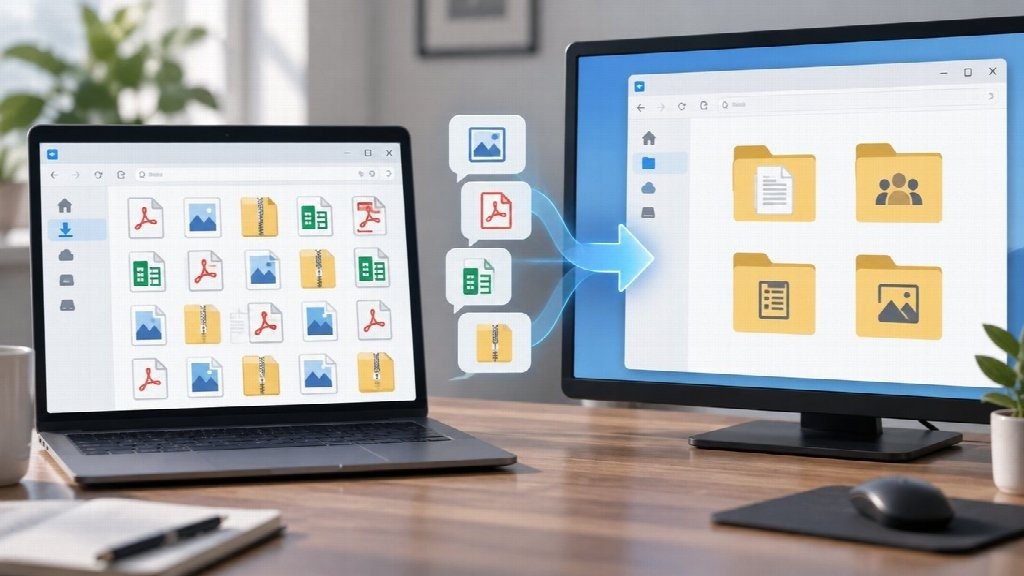
Build a Simple Handoff From Chat to File Explorer
Complicated folder systems rarely survive busy workdays.
A better setup is one that takes only a few seconds to follow.
One practical workflow is:
- Open the attachment and decide whether it matters beyond the current conversation.
- Leave genuinely temporary files in Downloads.
- Move useful files into the relevant client, project, department, or personal folder.
- Rename unclear files before the original context is forgotten.
- Remove duplicate downloads once the correct copy is stored.
- Move files that belong to a shared business record into the approved shared or cloud location.
The exact folder structure depends on the work.
A freelancer may organize files by client. A small business may prefer customers, suppliers, finance, and marketing. A project team may organize by project and date.
The important part is that the structure matches how people later search for information.
Rename Files While You Still Remember What They Are
Renaming files is one of those jobs that feels unnecessary at the moment and extremely useful three weeks later.
Consider this filename:
IMG_8317.jpg
It tells another person almost nothing.
Something like:
Storefront_Damage_2026-09-03.jpg
is easier to recognize in a folder, search result, attachment window, or backup.
The same applies to documents.
Instead of keeping:
final-report.pdf
a project team might use:
NorthSite_Inspection_Report_2026-09.pdf
There is no universal naming format that every team should adopt. Consistency matters more than complexity.
A good filename usually answers enough of these questions to be useful:
Who or what is this about? What kind of file is it? When was it created or received? Is the version important?
If answering those questions turns the filename into a sentence, the system has probably become too complicated.
Work Beside the File Instead of Repeatedly Returning to the Chat
One advantage of desktop messaging is that the conversation does not need to occupy the entire workspace.
Suppose a colleague sends a spreadsheet and asks why two totals do not match.
On a phone, the user may open the spreadsheet, return to the message, remember the question, switch back to the file, and repeat the process.
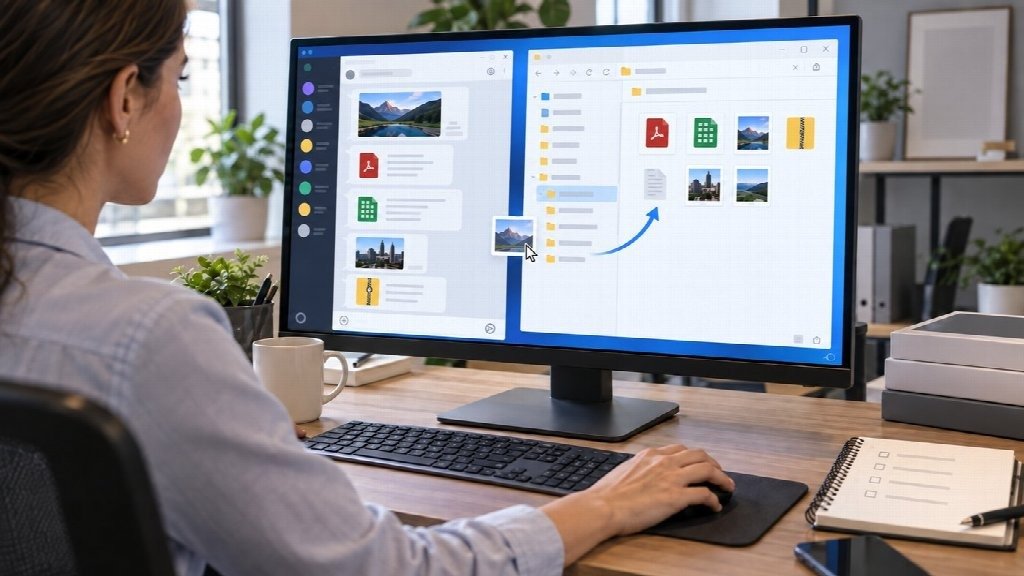
On Windows, the conversation and spreadsheet can remain visible together. The same applies to PDFs, browser pages, screenshots, order records, or internal documentation.
This matters because many messaging tasks are actually review tasks.
The message explains what needs attention. The real work happens in another application.
Keeping those two pieces of information visible at the same time reduces unnecessary switching and makes it easier to check details before responding.
Separate Working Files From Records That Need to Last
Not every attachment belongs in permanent storage.
A screenshot used to explain a temporary layout issue may be disposable by the end of the day. An invoice, signed document, approved design, customer record, or final project file probably is not.
That distinction is worth making deliberately.
Temporary messaging files can stay in a local working area for a short period. Files that form part of an official business or project record should eventually move into whatever system the organization already uses for long-term information.
That might be a shared drive, document-management platform, CRM, project folder, accounting system, or approved cloud service.
For employer-managed computers, company storage and security policies should take priority over personal preferences. A neat personal folder structure is not a substitute for an organization’s required records process.
Keep a Small Temporary Review Area
Some files are not ready to archive immediately.
You may need to review a proposal before deciding where it belongs, compare several images before choosing one, or wait for a colleague to confirm which version is final.
Instead of leaving those files mixed into Downloads indefinitely, a small temporary review folder can help.
For example:
Downloads / To Review
or:
Work / Incoming
The folder should stay temporary.
If it grows for months without being cleared, it has simply become a second Downloads folder.
A weekly review is usually enough for ordinary workloads. Keep what matters, move it to the right place, and remove what no longer has a purpose.
Avoid Downloading the Same Attachment Repeatedly
Duplicate files often appear because the conversation feels easier to search than the computer.
A user finds the old message, clicks the attachment again, and Windows saves another copy.
Soon the folder contains:
proposal.pdf
proposal (1).pdf
proposal (2).pdf
The better fix is not a duplicate-cleaning application. It is making the first saved copy easy to find.
Clear filenames and predictable folders reduce the temptation to return to the chat and download the same document again.
When several versions genuinely need to be retained, identify them deliberately rather than relying on automatically generated numbers.
For example:
Homepage_Copy_v1.docx
Homepage_Copy_ClientRevision.docx
Homepage_Copy_Approved.docx
The names explain the relationship between the files instead of leaving Windows to do it.
Make Desktop Guidance Easier for Multilingual Users
File handling can become slightly more confusing when the messaging application, Windows interface, and online instructions use different languages.
A Traditional Chinese user may have Windows configured in English while using a Chinese interface inside a messaging application. Another user may have the opposite setup.
This matters when instructions depend heavily on exact labels.
Chinese-speaking users searching for Windows-specific information may encounter terms such as Telegram 电脑版 while English documentation refers simply to the desktop version.
The underlying workflow is the same.
Rather than relying only on translated menu names, good instructions should explain the action being performed: open the downloaded file, locate its folder, rename it, move it, or review where future attachments are saved.
Those actions remain understandable even when interface wording changes.
Do a Short Weekly Cleanup
Messaging files are easier to control when cleanup happens regularly rather than after the Downloads folder contains several thousand items.
A weekly review does not need to become an administrative project.
Look at recent downloads and ask three questions:
Does this file still matter?
If it matters, is it stored somewhere that will make sense later?
If it does not matter, why is it still here?
This also provides a good opportunity to identify files that should have been moved into a shared project system or business record.
Ten minutes of maintenance is usually more useful than designing an elaborate filing system nobody follows.
The Best Desktop Workflow Is the One You Can Repeat
Messaging applications are good at moving information quickly. Windows is better suited to reviewing that information beside documents, browsers, spreadsheets, and other work tools.
Problems appear when the transition between the two is ignored.
Important attachments stay buried in chat history. Downloads accumulate without context. The same document is saved repeatedly. A file that was obvious on Monday becomes difficult to identify by Friday.
A practical desktop workflow fixes that transition.
Use messaging for communication. Use the Windows file system and approved business tools for organization and long-term records. Rename important files while their context is still fresh, and keep temporary downloads temporary.
The process is not sophisticated, and that is part of its value. A file-management habit that takes a few seconds and is followed consistently is more useful than a perfect system that only works when there is time to maintain it.