
A new laptop is ready, the browser is open, and the next job is reinstalling the apps used every day.
Messaging software is usually near the top of that list. The process seems routine: search for the app, click a download result, open the installer, and sign in.
The problem is that the first download button you see is not always the one you intended to use.
Search results can include the software publisher, app stores, software directories, advertisements, old download pages, and third-party mirrors. Even when the file itself is legitimate, it may be the wrong package for the device or an outdated version that creates problems later.
A useful check therefore happens before the installer is opened.
You do not need to investigate every download like a security researcher. You only need enough information to answer a few practical questions: Where did this file come from? Does it match the device? Does the installer identify itself as expected? And does anything happen that does not fit the application you intended to install?
Start With the Device, Not the Download Button
Before looking for an installer, confirm what the device actually needs.
That sounds obvious, but many download mistakes begin when someone searches for an application name without thinking about the operating system first.
A Windows PC, Mac, Android phone, and iPhone may all use the same account, but they do not necessarily use the same installation package or update process.
The platform also affects where software normally comes from.
A mobile user may expect an app-store listing. A Windows user may be dealing with an installer downloaded through a browser. A managed work computer may not permit direct installation at all.
Knowing the platform first makes the rest of the process much easier.
If the download page presents several versions, the user already knows which one should apply. If the downloaded file has a format that makes no sense for that device, there is a reason to stop before opening it.
Check Where the File Came From
The address bar deserves more attention than the size or color of the Download button.
Start by looking at the domain.
A familiar brand name somewhere in the page title does not necessarily mean the website belongs to that publisher. Search ads, download directories, and copied landing pages can all use recognizable product names.
Look for spelling changes, extra words, unexpected subdomains, or redirects to an unrelated site.
HTTPS is worth having, but the padlock alone is not proof that a software download is trustworthy. HTTPS protects the connection between the browser and the site. It does not guarantee that every file offered by that site is appropriate for the user.
Context matters more.
Does the page clearly identify the software? Does it explain which platform the download is for? Does the domain make sense? Does clicking the button keep the user on the expected site or send the browser somewhere unrelated?
If those details do not line up, there is little reason to rush into opening the file.
Make Sure the File Matches What You Expected
After downloading a file, pause before launching it.
The filename and file type should broadly match the installation method you expected.
Someone setting up Windows software should question a package that appears to belong to an entirely different platform. The same applies when a download unexpectedly arrives as a compressed archive, browser extension, or unrelated utility.
The installer should also identify the application and publisher in a way that makes sense.
Modern operating systems often display publisher information or security prompts when an application is opened for the first time. That information is useful. Read it instead of automatically clicking through.
If the operating system cannot identify the publisher, that does not by itself prove the software is malicious, but it is a reason to verify the source again before continuing.
The same rule applies when a filename looks generic or unrelated to the application.
An extra minute of checking is easier than trying to work out later what was actually installed.
Compare Installation Options Before Choosing One
There is not always a single way to install an application.
Depending on the platform, users may see a direct desktop installer, an app-store version, a portable option, or another supported distribution method.
That can be confusing when setting up a replacement device.
Instead of treating every search result as a separate answer, it helps to compare the available options from one consistent reference point. Users deciding how to set up a messaging client can review Telegram download options before choosing the route that best matches the operating system they are using.
The decision should be based on the device and intended use rather than whichever download button appears first.
A personally owned Windows laptop, for example, may have different installation options from a company-managed computer where software must be approved centrally.
There is no benefit in forcing the same installation method onto every environment.
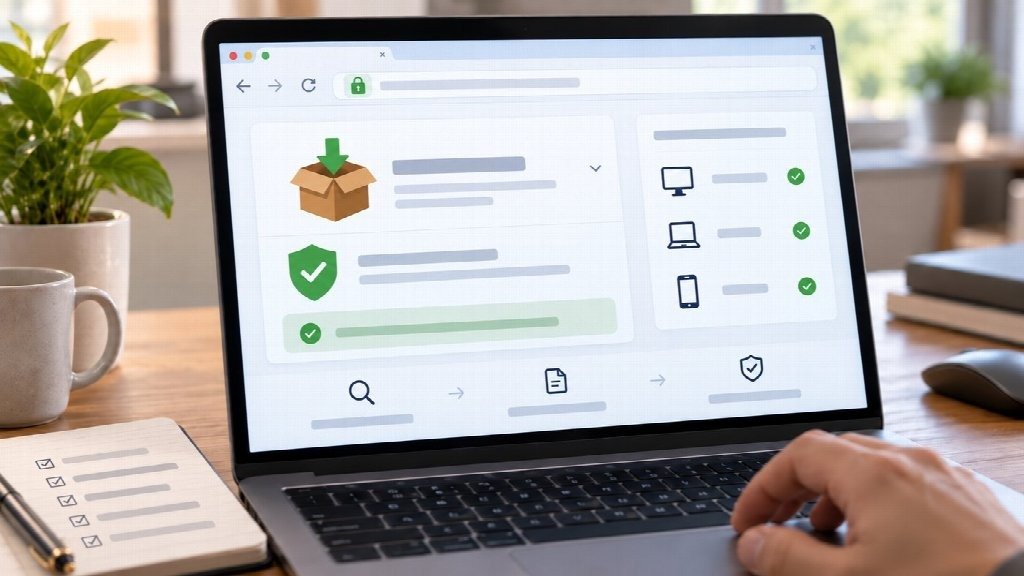
Let Operating-System Warnings Do Their Job
Security warnings are often treated as obstacles to get past as quickly as possible.
That is the wrong habit.
Windows, macOS, Android, and iOS all have mechanisms designed to make unexpected installations more visible. The details differ, but the principle is the same: the operating system is giving the user another chance to notice something unusual.
If a warning appears, read what it says.
Check the application name.
Check the publisher if one is shown.
Think about whether the warning fits what you were trying to do.
Be especially cautious if an installation guide tells you to disable built-in security controls simply because the installer will not run. There may be legitimate technical reasons for advanced users to change security settings in some situations, but bypassing a warning should not be the default response to an ordinary messaging-app installation.
When the package is uncertain, returning to the source and checking again is usually the better option.
Pay Attention to What the Installer Wants to Change
The next useful checkpoint appears during installation.
A messaging application may reasonably need access to features connected to communication, files, notifications, a microphone, or a camera. The exact permissions depend on the platform and on which features the user chooses to use.
What matters is whether the request makes sense in context.
A person who installs an app for text messaging does not need to approve every optional permission immediately. Camera or microphone access can often be considered when the related feature is actually used.
The installer also should not quietly turn into a package for several unrelated programs.
Unexpected browser extensions, system cleaners, search tools, or additional utilities are reasons to slow down and review what is being installed.
This is one advantage of reading installation screens rather than treating the Next button as something to click repeatedly.
Language Differences Can Make Installation Harder to Check
Installation becomes slightly more difficult when the browser, operating system, messaging app, and instructions use different languages.
A user might search in Traditional Chinese, download software from an English page, and then see a Windows security prompt using another set of terms.
The underlying actions are simple, but the terminology changes.
Chinese-speaking users comparing installation instructions may therefore find a Telegram 下载指南 useful when matching familiar download terminology with the prompts they encounter on a desktop or mobile device.
Good installation guidance should explain the action rather than depend entirely on exact button wording.
“Confirm that the package is intended for Windows before opening it” remains understandable across interface versions.
“Press the second blue button” does not.
This matters because layouts and translations change more often than the purpose of the step.
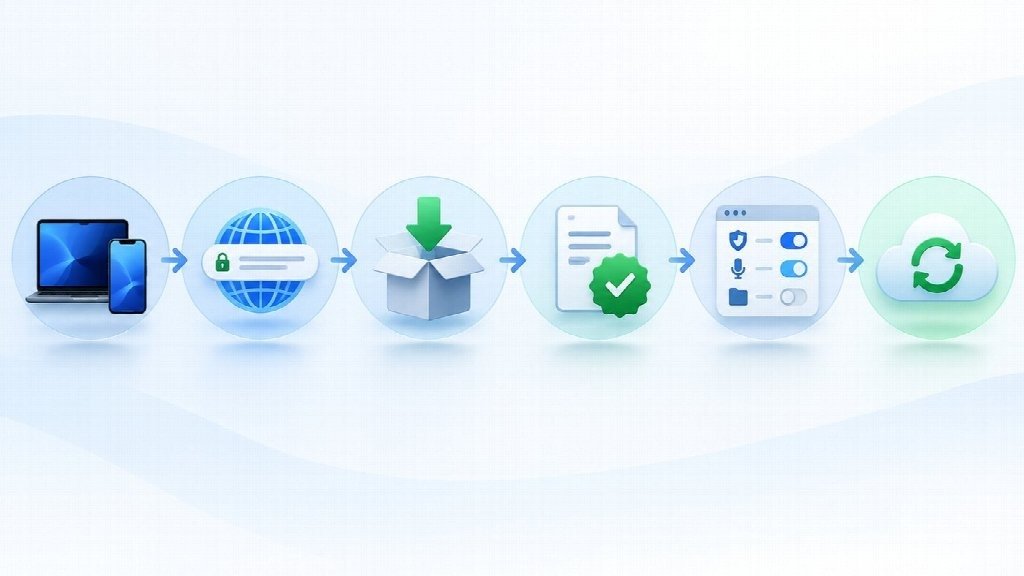
Confirm How Updates Will Arrive
Installation is not finished when the application opens successfully.
It is also useful to know how future updates are supposed to arrive.
Software installed through an app marketplace will normally follow that marketplace’s update process. A desktop application obtained directly from a publisher may use its own updater or direct users back to an established download channel.
That gives the user a baseline for recognizing unusual update prompts later.
If an unexpected website popup suddenly claims that the messaging application must be updated immediately, the safer response is to open the application or its established distribution source directly rather than trusting the popup.
A predictable update path makes future maintenance simpler.
It also reduces the chance that someone will search from scratch every few months and end up on an unrelated download page.
Do a 60-Second Check Before Opening the File
A complete forensic analysis is unnecessary for ordinary software installation. A short consistency check catches many obvious problems:
- Confirm the operating system and device.
- Check the domain the download came from.
- Make sure the package or file type fits the platform.
- Read the application and publisher information shown by the operating system.
- Stop if the installer redirects to unrelated software or asks you to disable security controls without a clear reason.
- Review permissions instead of approving everything automatically.
- Confirm how future updates are expected to arrive.
If all of those details make sense together, the installation process is much easier to trust.
If several do not, there is no advantage in continuing quickly.
A Better Installation Process Is Mostly About Consistency
Most software installation mistakes do not happen because the user lacks technical knowledge.
They happen because the process feels familiar enough to rush.
A search result looks right. A large button says Download. The file appears in the Downloads folder. The user clicks through three prompts without reading them.
Slowing that sequence down slightly changes the outcome.
Know which platform you are installing for. Check the source. Make sure the downloaded package matches what you expected. Read operating-system warnings, pay attention to permissions, and know where future updates should come from.
Those checks do not make installing a messaging application complicated.
They make the process predictable — which is exactly what a new-device setup should be.