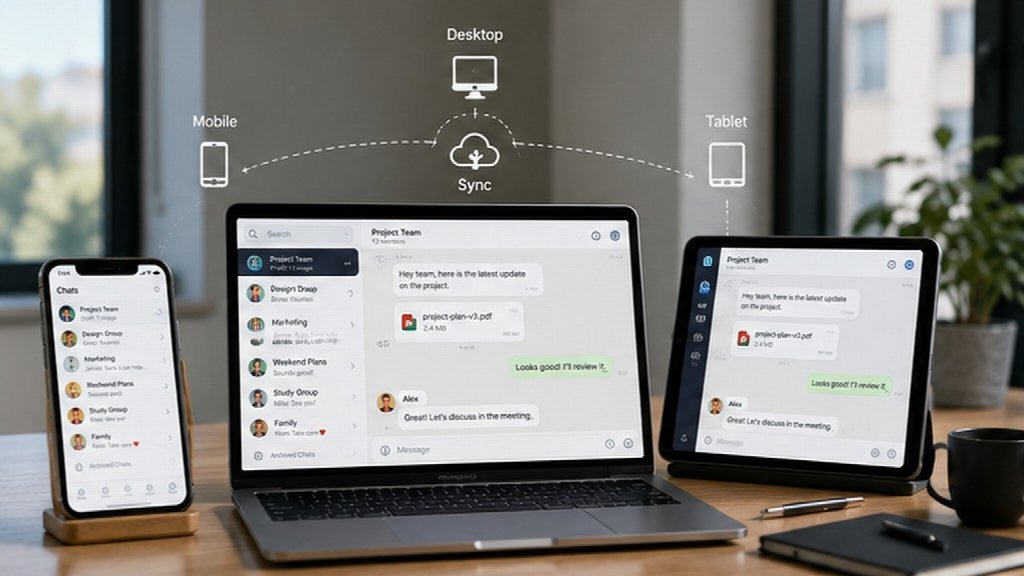
Messaging rarely stays on one device. A conversation may begin on a smartphone during a commute, continue on a laptop at work, and later be reviewed from a desktop computer or tablet.
This flexibility is useful for work, study, travel, community management, and everyday communication, but it can also create unnecessary complexity. Different devices may run different application versions, save attachments in separate locations, produce duplicate notifications, or remain signed in long after they are actively used.
For users in Hong Kong, Taiwan, and other environments where desktop and mobile communication are frequently combined, a more practical approach is to create one predictable cross-device routine.
The objective is not to make every device behave identically. It is to give each device a clear purpose while keeping installation, file handling, notifications, privacy, and account access consistent where it matters.
Why Cross-Device Messaging Setups Become Inconsistent
Most people do not intentionally design a multi-device communication system.
They install a messaging app on a phone first, add the desktop version later, sign in through a browser while traveling, and perhaps connect another tablet or computer in the future.
Each decision makes sense individually. Problems begin when every device is configured independently.
Common issues include:
- different application versions across devices;
- attachments stored in several download folders;
- the same notification appearing on multiple screens;
- old browser or desktop sessions remaining active;
- confusion about desktop and mobile features;
- files being saved locally without a clear structure;
- different privacy settings on each device;
- applications launching automatically on some computers but not others.
None of these issues is particularly serious on its own. Together, however, they make communication more difficult to manage and make future device changes less predictable.
A consistent setup starts by making a few decisions before adding another device.
Choose the Correct Version for Each Operating System
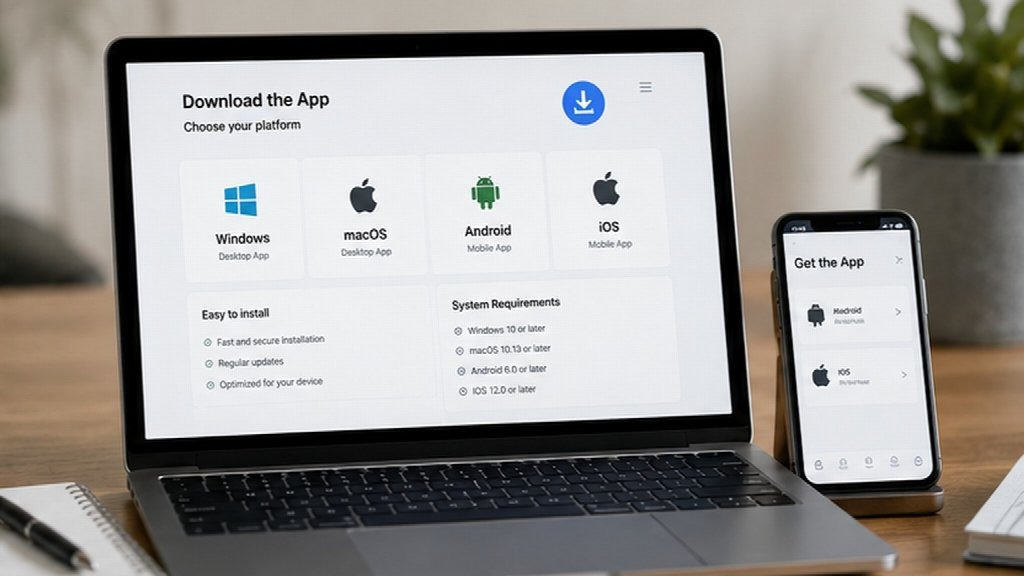
Before installing any messaging application, identify the device and operating system first.
A phone and a desktop computer may use the same messaging account, but they do not necessarily use the same application package, update process, storage location, or interface.
Useful questions to answer before installation include:
- Is the device running Windows, macOS, Android, or iOS?
- Do you need a native desktop application or only browser access?
- Is the computer personally owned or managed by an employer?
- Is there enough local storage for downloaded files and media?
- Are you replacing an older installation?
- Does the account already have other active sessions?
- Will the device be used regularly or only temporarily?
Search terminology can also vary by language. Chinese-speaking users in Hong Kong or Taiwan, for example, may look for a Telegram 下载指南 when comparing available desktop and mobile options.
Whatever language is used during the search, the important step is matching the installation option to the actual device before downloading or configuring the application.
This reduces the chance of choosing an incompatible package or repeating the same setup research whenever another device is added.
Give Desktop and Mobile Devices Different Roles
A consistent cross-device workflow does not require every device to perform every task.
Desktop and mobile environments have different strengths, and communication becomes easier when those differences are used deliberately.
Use Desktop Devices for Longer and File-Heavy Tasks
Desktop and laptop applications are generally better suited to:
- longer conversations;
- keyboard-based typing;
- reviewing documents;
- transferring larger files;
- managing several conversations;
- working beside browsers, spreadsheets, or productivity tools;
- organizing downloaded attachments.
This is particularly useful when messaging is part of a larger work, study, or project-management workflow.
Use Mobile Devices for Speed and Availability
Phones are usually more practical for:
- quick replies;
- urgent notifications;
- photos and short media updates;
- brief status messages;
- communication while commuting or traveling;
- checking time-sensitive conversations away from a desk.
Trying to perform every task equally on every device can create unnecessary duplication.
For example, downloading the same large attachment to a phone, tablet, and desktop may provide little benefit if the document will only be reviewed on the computer.
Giving each device a primary role keeps the workflow simpler without reducing accessibility.
Use a Consistent Installation Reference
One reason multi-device setups become inconsistent is that users often start from the beginning every time they add a new device.
They search again, find a different installation page, follow another guide, and make a new set of configuration decisions.
A better approach is to keep one reference point for the overall setup.
Users comparing supported platforms can refer back to a Telegram download guide when setting up another desktop or mobile device instead of treating each installation as a completely unrelated process.
A setup reference does not need to dictate every personal preference. Its purpose is simply to provide a consistent starting point for:
- platform selection;
- installation;
- basic account setup;
- desktop versus mobile use;
- file handling;
- notification configuration;
- account access and session review.
Individual settings can still be adjusted afterward to match how each device is actually used.
Choose Download Sources Carefully
Popular messaging applications are widely searched online, which means users may encounter advertisements, software directories, mirrors, and third-party download pages.
Some may provide legitimate information, while others may distribute outdated, modified, or difficult-to-verify packages.
Before downloading software, users should check:
- whether the version matches the operating system;
- whether the installer type is appropriate for the device;
- whether the page clearly identifies the application and platform;
- whether the file appears to have been modified or repackaged;
- whether the page produces suspicious redirects or unexpected pop-ups;
- whether requested installation permissions are reasonable.
On employer-managed devices, internal software policies should take priority over personal installation preferences.
A consistent and reviewed installation process is easier to repeat than searching from scratch whenever another computer or phone is added.
Decide Where Messaging Files Should Be Stored
Messaging applications have also become informal file-transfer tools.
Users routinely exchange:
- PDF files;
- screenshots;
- photos;
- documents;
- spreadsheets;
- presentations;
- archives;
- videos;
- temporary project files.
Without a simple storage routine, the Downloads folder can quickly become difficult to navigate.
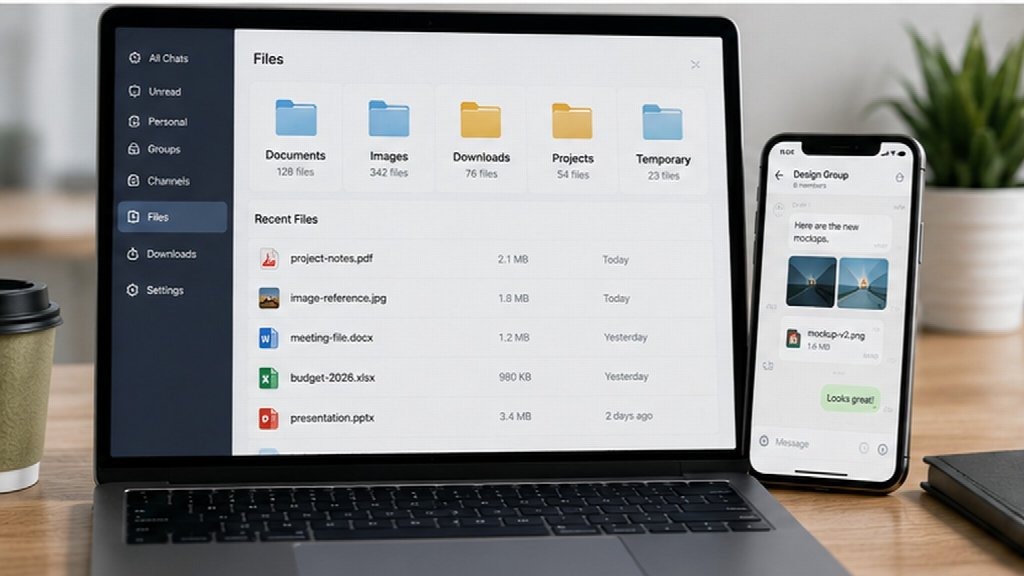
Create a Simple Folder Structure
One practical approach is to separate files by purpose.
- Documents: PDFs, spreadsheets, presentations, and text files.
- Images: screenshots, photographs, and visual assets.
- Temporary Files: material that can be removed after use.
- Project Folders: files that belong to an ongoing client, course, or work project.
Important files should eventually be moved outside the messaging application’s temporary download location.
Chat history can be useful for communication, but it should not be the only place where an important document can be found.
Control Notifications Across Multiple Devices
Cross-device messaging can quickly create duplicate alerts.
A single message may generate a desktop banner, phone notification, tablet alert, and smartwatch vibration within seconds.
That may be useful for an urgent conversation, but it creates unnecessary interruption when applied to every group or channel.
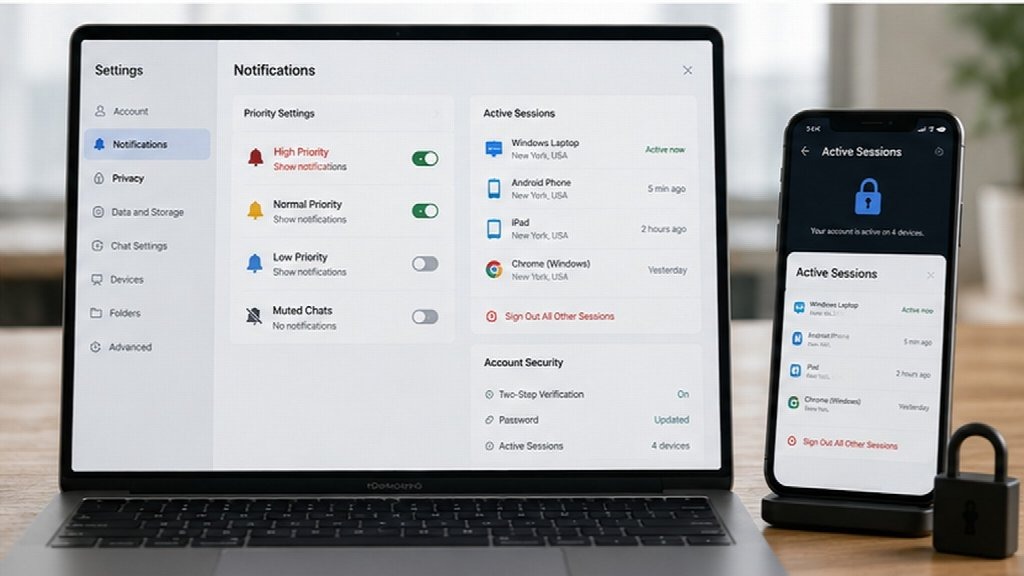
High-Priority Conversations
Keep immediate alerts enabled for:
- important personal contacts;
- time-sensitive work messages;
- critical project conversations;
- urgent operational updates.
Normal-Priority Conversations
Standard or reduced notifications may be appropriate for:
- routine team discussions;
- regular social conversations;
- study or collaboration groups;
- non-urgent project updates.
Low-Priority Conversations
Consider muting:
- large public groups;
- high-volume channels;
- promotional updates;
- general-interest communities.
Users who spend most of the working day at a computer may prefer desktop notifications while reducing mobile alerts during those hours.
When away from the desk, the opposite configuration may be more useful.
Notification settings should reflect how a device is being used rather than simply remaining enabled everywhere by default.
Keep Active Sessions Under Control
A messaging account can accumulate active sessions over time.
These may include:
- a current laptop;
- an old desktop computer;
- a smartphone;
- a tablet;
- a browser session;
- a temporary travel device.
Older sessions are easy to forget, particularly when the device itself is no longer used regularly.
Users should periodically review connected devices and remove sessions that are no longer required.
Session review is especially useful after:
- replacing a computer;
- losing a phone or tablet;
- using a shared computer;
- selling or giving away old hardware;
- logging in temporarily while traveling;
- returning an employer-owned device.
This is a simple maintenance step, but it helps keep account access understandable and reduces the number of forgotten devices associated with the account.
Use Available Account Protection Features
Cross-device convenience should not replace basic account security.
When supported by the service, users can consider features such as:
- two-step verification;
- recovery information;
- connected-device review;
- session monitoring;
- local screen locks.
Authentication codes and account recovery information should also be treated as sensitive.
Unexpected messages asking for verification codes, passwords, account credentials, or software installation should be approached cautiously.
Messaging accounts can contain personal conversations, work information, files, contact details, and years of communication history. Protecting access is therefore an important part of maintaining a multi-device setup.
Keep Settings Consistent Where Consistency Helps
Not every setting needs to be identical across a phone and computer.
However, several areas benefit from deliberate consistency.
These may include:
- interface language preferences;
- privacy choices;
- account-protection settings;
- file organization;
- active-session management;
- basic notification priorities.
Other settings can reasonably differ.
A user may want more immediate notifications on a phone but fewer desktop interruptions during focused work. Automatic media downloads may make sense on a computer with ample storage but be unnecessary on a mobile device with limited space.
Consistency does not mean making every setting identical.
It means making those differences intentional.
Create a Simple Cross-Device Setup Checklist
A short checklist can prevent many of the most common multi-device setup problems.
- Identify the device and operating system.
- Select the appropriate application version.
- Confirm the intended installation source.
- Complete installation and sign in.
- Check the default download location.
- Configure notification priorities.
- Review privacy settings.
- Enable available account-protection features.
- Check active sessions and connected devices.
- Decide whether the device is mainly for desktop work or mobile access.
- Remove sessions from devices that are no longer used.
- Move important files outside chat history when long-term storage is required.
The process only takes a short amount of time, but it makes later device changes much easier to manage.
Common Questions About Cross-Device Messaging Setup
Should desktop and mobile settings be identical?
No. Settings should reflect how each device is used. Security, privacy, and account-access practices should remain consistent, while notifications, media downloads, and startup behavior can differ according to the role of each device.
Which device should be the main messaging device?
Users who spend much of the day working at a desk may find a laptop or desktop more practical for detailed conversations and file management. A phone is generally better for quick communication while moving between locations.
How can duplicate notifications be reduced?
Decide which devices should provide immediate alerts during different parts of the day. Low-priority groups can be muted, while important direct messages remain enabled.
Should downloaded messaging files stay in the Downloads folder?
Temporary files can remain there briefly, but important documents should be moved into organized long-term storage so they can be found without searching old conversations.
When should active sessions be reviewed?
Review them periodically and whenever a device is replaced, lost, sold, shared, returned, or used temporarily while traveling.
A Better Cross-Device Setup Is Predictable, Not Complicated
Cross-device messaging works best when users know what each device is for.
A desktop or laptop can handle longer conversations, documents, and file-heavy tasks. A phone can handle quick replies, urgent notifications, and communication away from the desk. Both can use the same account while applying settings that match their individual roles.
The most useful setup is not the one with the largest number of features enabled.
It is the one that makes software installation, notifications, file storage, privacy settings, and account access predictable.
Once those fundamentals are organized, switching between desktop and mobile devices becomes easier, important files are simpler to locate, old sessions are less likely to be forgotten, and messaging tools can support daily communication without creating additional digital clutter.