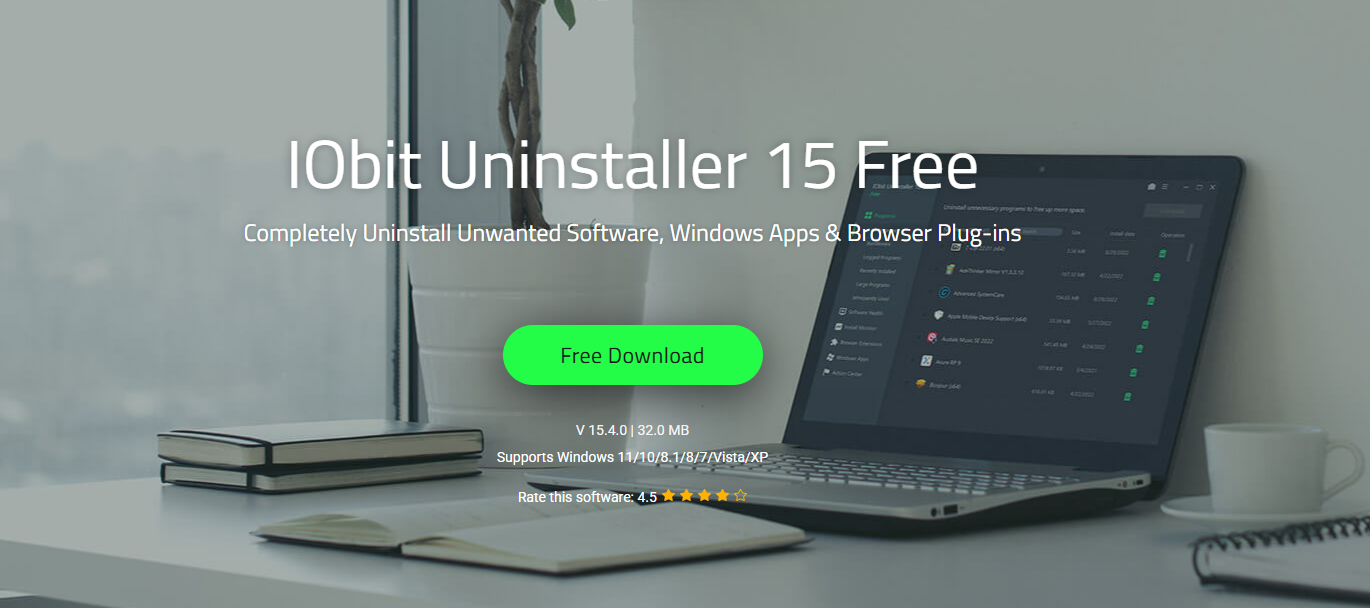
For a long time, I treated uninstalling programs as a quick chore: remove, click “Next,” and forget about it. Over the years, though, my PC started feeling heavier—startup took longer, strange leftovers showed up in folders, and I could never tell if old software was really gone. That’s when I decided I needed something more serious to deal with junk software and all the hidden traces it leaves behind, and that’s how I started using IObit Uninstaller as part of my regular cleanup routine.
Why I Chose IObit Uninstaller?
My main problems were stubborn programs that refused to uninstall properly, bundles that installed extra apps I didn’t want, and the nagging feeling that my system was full of leftovers from old software. I so much hated dealing with spam notifications and random plug‑ins in my browser. I want a tool that can handle both program removal and cleanup without complicating things.
When I first landed on the official IObit page and saw a dedicated uninstaller promising complete removal of unwanted software, leftovers, and browser junk, it sounded exactly like what I needed. The idea of a clean and light PC, which supports removing regular apps, bundleware, Windows apps, and all their associated traces, made me curious enough to download and try it properly.
Key Features That Matter to Me
Clean and Light PC
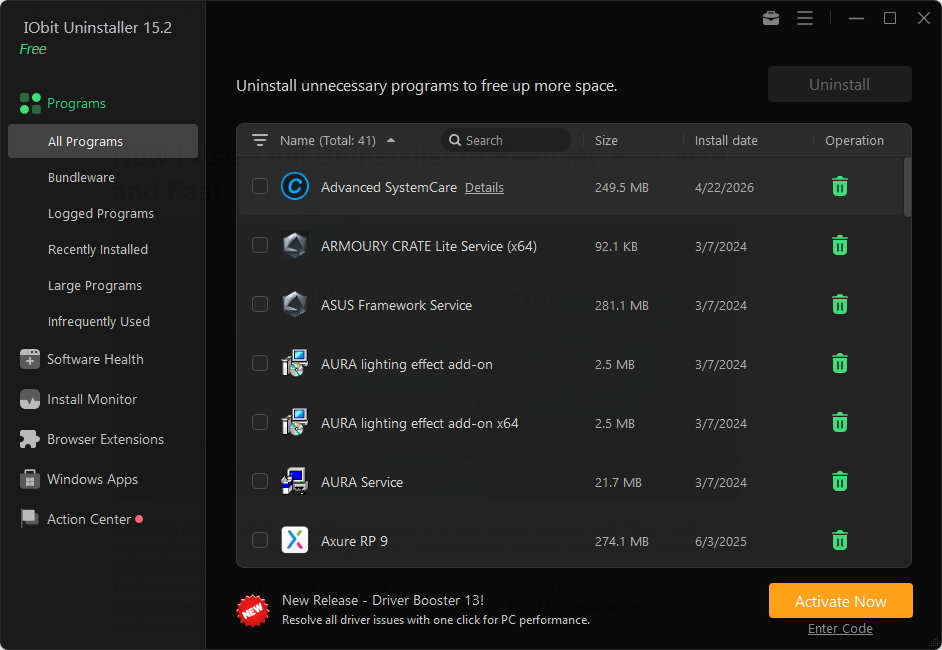
What I really like is how it actually follows through on the clean and light promise. It can accurately detect and delete stubborn programs, bundleware, and other hidden items, not just the obvious ones on the list.
After each uninstall, it clears associated leftovers such as temporary files, registry entries, executables, and configurations, helping keep my PC secure and running at peak performance rather than bogging down over time.
Safe Surfing Without a Lag
I didn’t expect my uninstaller to help with browsing, but this one does (make me happy). It works as a browser extension manager, identifying plugins and toolbars across Chrome, Firefox, Edge, and Internet Explorer, and letting me see whether they’re trusted. On top of that, it supports blocking spam notifications and pop-ups, which has made my browser feel both cleaner and calmer.
Real‑Time Install Monitoring
Another feature I’ve come to rely on is Real‑Time Install Monitoring. It tracks the changes an installer makes to my system and logs them in detail. I can drag a setup file into IObit Uninstaller to see what it adds, or let it automatically mirror the entire installation process. If I later decide the program is not worth keeping, those logs make it easier to uninstall everything related to it.
Software Health for Ongoing Maintenance
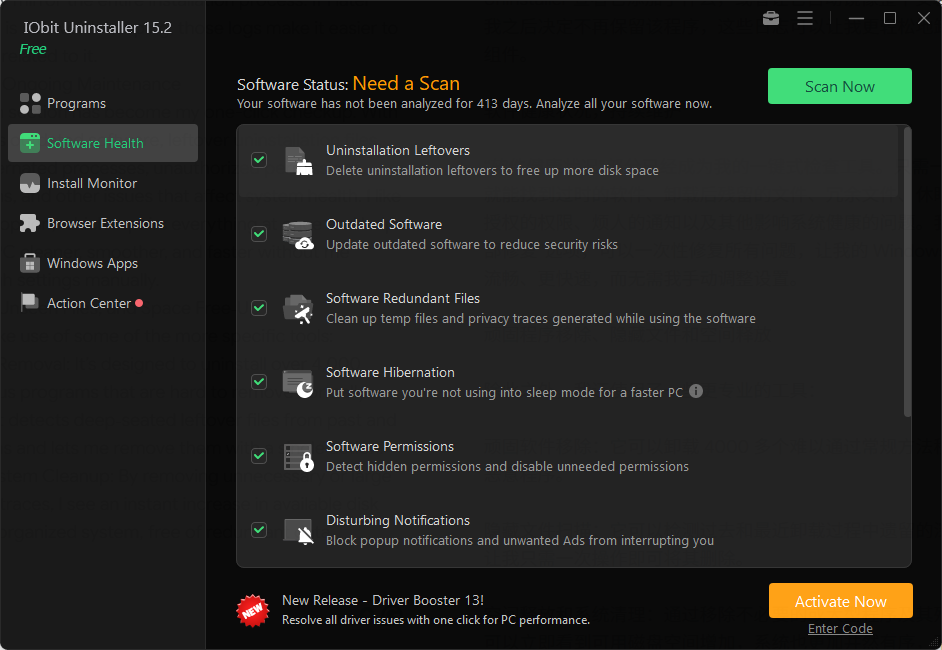
The Software Health section has become my one-click checkup. With a single scan, it finds outdated software, leftover uninstallation files, redundant files, hibernated processes, unauthorized permissions, intrusive notifications, and other issues that affect system health. I like that there’s a Fix All option, which repairs everything at once and helps keep my Windows PC cleaner, smoother, and faster without me having to dig through settings manually.
Stubborn Removal, Unseen Files, and Space Free‑Up
On top of that, I make use of some of the more specific tools:
- Stubborn Software Removal: It’s designed to uninstall over 4,000 stubborn or malicious programs that are hard to remove normally.
- Unseen Files Scan: It detects deep‑seated leftover files from past and recent uninstallations and lets me remove them with a single action.
- Space Free‑Up & System Cleanup: By removing unnecessary or large programs and their traces, I see an instant increase in available disk space and a better‑organized system, free of redundant data.
How I Use IObit Uninstaller Step by Step
Here’s exactly how I use IObit Uninstaller in my daily routine.
- Locate the programs I don’t need
I open IObit Uninstaller 15 and browse through the list of installed programs, or just type into the search box to find a specific app quickly. When I want to clear a lot of software at once, I select multiple items to remove them in a batch. - Start the uninstall process.
After selecting my programs, I click the Uninstall button in the upper-right corner. In the pop-up window, I usually choose to create a restore point (for safety), let it automatically remove residual files, then confirm the uninstall. - Let it clean leftovers automatically.
After a normal uninstall, IObit Uninstaller runs a scan for leftovers—files, folders, and registry entries associated with those programs. I review what it finds and then allow it to delete everything, which gives me confidence that the software is truly gone. - Use Force Removal when something refuses to go.
When I run into an app that throws errors like “Cannot delete file” or keeps reappearing, I use the Force Removal feature. This has helped me clear out stubborn software without manually hunting down files one by one. - Tidy up my browser and notifications.
From time to time, I go to the Browser Safeguard section to detect malicious toolbars or plugins that might track my browsing data, and I remove anything suspicious. I also block spam notifications and intrusive pop-ups so my browser stays under my control. - Run Software Health scans regularly.
Finally, I visit the Software Health page, run a scan for outdated apps, leftover files, redundant files, and intrusive permissions, and then hit Fix All. This has become a quick way to keep my overall software environment in good shape.
Advantages
- Thorough removal of programs and leftovers
It doesn’t just uninstall the program but clears all temporary files, registry entries, and configuration files tied to it, which keeps my system noticeably cleaner. - Batch uninstall and force removal save time.
Being able to uninstall multiple programs in one go and use Force Removal for stubborn apps has saved me from a lot of manual effort and frustration. - Extra value from browser and software health tools
The browser extension management, spam notification blocking, and Software Health scan give me much more than a simple uninstaller, all within one interface.
Disadvantages
- Plenty of options to explore at first
Because it offers features like Software Health, Install Monitor, Unseen Files Scan, and more, it took me a bit of time to explore and understand everything. - Extra prompts during uninstall
When I enable restore point creation and leftover removal, there are a couple of additional confirmation steps, which add a little time to each uninstall (though they do make things safer). - Full scans can take a while on large systems.
When I run deeper scans (like Unseen Files or big Software Health checks), they can take some time on a system with lots of software, so I usually run them when I’m not in a rush.
Conclusion: My Personal Recommendation
After using IObit Uninstaller for a while, I see it as more than just a way to delete programs—it’s become my “secret weapon” against junk software and hidden leftovers that I don’t want living on my PC. The combination of complete uninstalling, leftover cleanup, browser safeguard, real‑time install monitoring, and Software Health checks has made my system feel lighter, more organized, and easier to maintain.
If you’re tired of guessing whether a program is really gone or worrying about what’s left behind, using IObit Uninstaller the way I do is a straightforward way to take back control of your software and keep Windows running the way it should.