
Inadequate or corrupt drivers can cause system hangs, crashes, and malfunctioning hardware components, interfering with productive work and game sessions. The objective was to find a solution in one tool that would scan, update, and backup the drivers automatically without having to guess which one was safe. So, Driver Booster became the reliable helper for me.
What Does Driver Booster Do?
Driver Booster is an all-in-one solution for managing my computer’s drivers from the makers at IObit. It checks my PC for out-of-date or missing drivers and installs the latest versions, guaranteed by their manufacturers. The objective of this software is to minimize crashes and revive the performance of my hardware components without making things overly complicated. It solves the problems that lie behind my system’s instability.
Features That Keep Driver Booster Confident
Massive Verified Driver Database — The app taps into 23M+ drivers in databases, so it finds drivers for both modern and legacy hardware. That breadth reduces the chance of unrecognized devices and missing resources, which means fewer surprises when I plug in a new peripheral.
Multi‑Version Scanning and Flexible Installs — I appreciate seeing both the latest performance drivers and the most stable WHQL releases. Choosing the version that fits my needs—stable for work, latest for gaming—gives me control without risk. The multi‑version detection is especially useful when a new driver promises performance gains but I prefer to wait for proven stability.
Reengineered Scanning and Installation Engines — The updated scanning engine detects multiple driver versions and the revamped installer handles multi‑version installs smoothly. That reduces installation failures and driver conflicts, so updates rarely leave me troubleshooting.
Automatic Scans and Background Updates — I schedule scans and let updates run during idle time. The automation keeps my system current without interrupting my workflow, and the app runs quietly in the background so I don’t have to babysit it.
Safety Nets: Backup, Restore, Rollback — Before any update, the app creates driver backups and a system restore point. If an update causes trouble, I roll back with a single click—this safety net is the main reason I update proactively rather than avoid updates out of fear.
Offline Driver Updater — For fresh OS installs or offline machines, I prepare driver packages on another PC and restore functionality without internet access. That feature has saved me when setting up older laptops or machines in restricted environments.
Gaming Tools and DLL Repair — Game Boost, game‑ready driver updates, and the Fix Missing Game DLLs feature have rescued me from runtime errors and stuttering during important matches. It scans and repairs common game components and DLLs so I spend less time troubleshooting and more time playing.
Network Flexibility and UI Improvements — SOCKS5 proxy support and a redesigned interface make downloads reliable in restricted networks and the app easier to navigate. The cleaner UI helps me find what I need quickly, even when I’m not in the mood for technical detail.
Verified Sources and Security Checks — Drivers come from official manufacturers and Microsoft channels and pass WHQL and IObit security checks. Knowing updates are certified reassures me that I’m not trading stability for convenience.
How I Use Driver Booster — Step‑by‑Step
1. Install and Run an Initial Scan
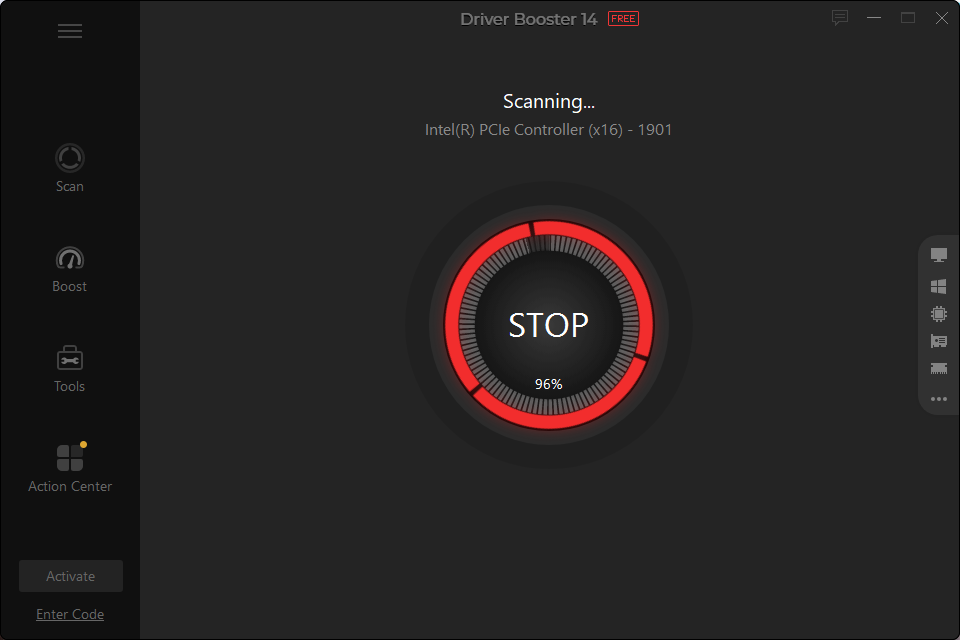
I downloaded and installed Driver Booster, then run the first full scan. The initial pass gives me a clear list of outdated, missing, or problematic drivers so I know exactly what needs attention.
2. Inspect and Prioritize Results
The scan groups drivers by priority. I focus on critical items like GPU, chipset, and network drivers first, and note less urgent peripheral updates for later. Seeing the priority helps me avoid unnecessary changes to low‑impact drivers.
3. Confirm Automatic Backups
The software automatically creates a driver backup and a system restore point before updates. I verify backup settings so I can revert if anything goes wrong. That one step removes the anxiety I used to feel before updating drivers manually.
4. Choose Driver Versions Thoughtfully
For daily stability I pick WHQL‑certified stable versions; for gaming sessions I sometimes select the latest game‑ready drivers. The multi‑version option makes this choice clear and safe, and I can switch strategies depending on whether I need reliability or peak performance.
5. Update in Small Batches
I update a few drivers at a time rather than everything at once. If an issue appears, it’s easier to identify and roll back the specific update. This incremental approach has saved me hours of troubleshooting.
6. Use Offline Mode for New Installs
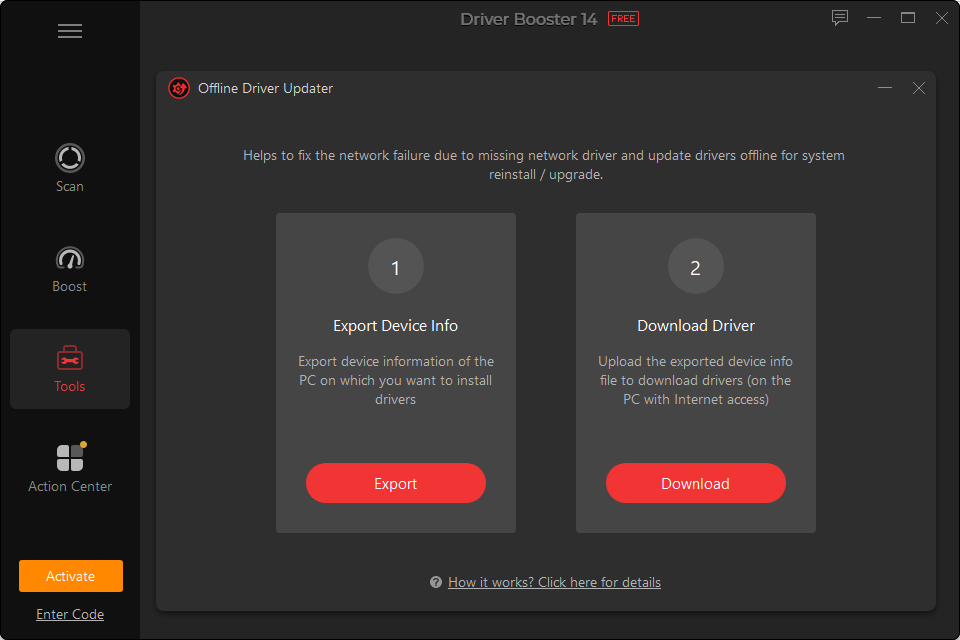
When setting up a fresh OS or fixing a machine without internet, I use the offline Driver Updater to prepare driver packs on another computer and transfer them. It’s a practical workaround for machines in secure or air‑gapped environments.
7. Run Repair Tools When Needed
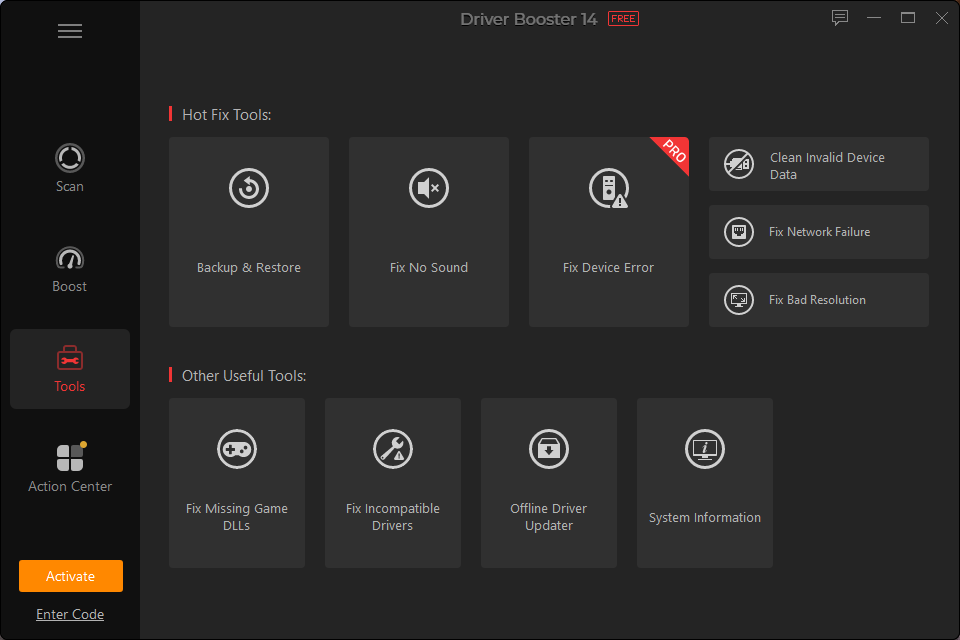
If I lose sound, network access, or encounter game crashes, I run the builtin repair tools (including Fix Missing Game DLLs) before diving into deeper troubleshooting. Generally, the fixers sort out the problem within minutes.
8. Perform Routine Maintenance
The setup supports performing scans at certain time intervals to allow for automatic updates of the system through the software. This ensured that outdated drivers do not build up in my computer.
9. Monitor and Roll Back If Necessary
Once the updates have been installed, I observe the system for one or two days. If something odd appears, the rollback process is straightforward: restore the previous driver or use the system restore point and I’m back to a stable state.
Who Benefits Most From This Tool
All those looking for a way to update their Windows drivers automatically, without compromising safety, be they home users, gamers, or even small office PCs.
Final Thought
Updating drivers no longer feels risky. With Driver Booster and its verified driver sources, multi-version flexibility, automatic backups, and repair utilities, this driver updater lets me update confidently and keep my PC stable and responsive. It’s the practical, low-risk way I maintain peak performance and avoid the downtime that used to interrupt my day.