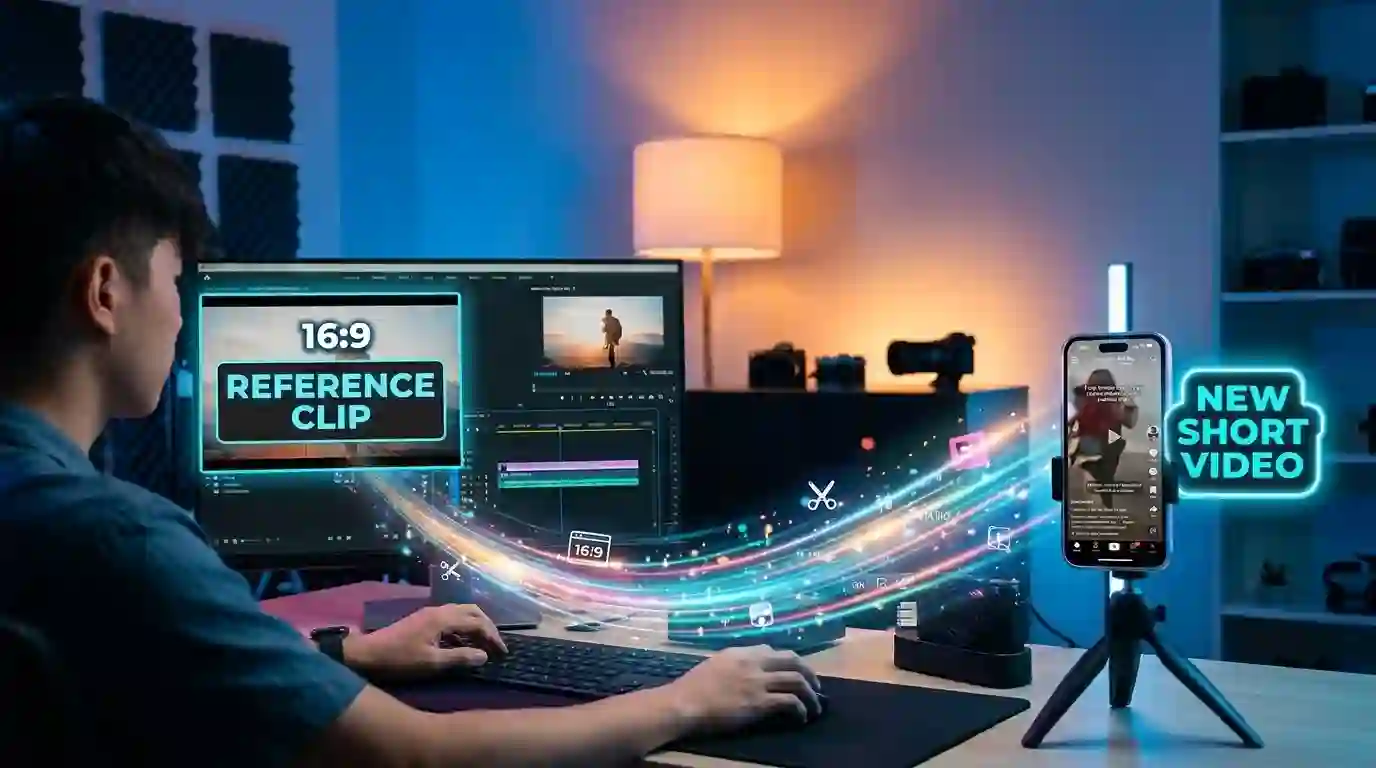
A reference clip can provide the motion and pacing for a fresh short video. This walkthrough shows how to use AI genjutsu with your own images, choose workable inputs, and troubleshoot the first result.
Start with motion you can actually reuse
The hardest part of making a short video is often deciding what should happen on screen. A reference clip answers that question before you open an editor: it already has a camera angle, a subject, and a sequence of movements. The useful question is whether those movements will still make sense when you change the subject.
Pick a brief clip with one dominant action, such as a person walking into frame or a product turning on a table. Avoid a source that depends on tiny text, several overlapping faces, or cuts so fast that the replacement is never visible. Use footage you own or are allowed to adapt.
Match the image to the shot
If the source shows a full body dancer, a close cropped face photo is a poor reference for a full body replacement. If it shows a product from multiple sides, collect images that reveal the product’s form from those angles. Clean light and an uncluttered background make the subject easier to identify.
AI genjutsu lets you add several reference images for a character, object, or outfit. Keep them consistent. A red jacket in one image and a blue jacket in another can make the final clip unstable. Before generating, decide which traits are essential: shape, color, facial features, or a particular accessory.
Describe the change in one clear prompt
A useful prompt explains what to replace and what should stay. For example: replace the plain backpack with the green canvas backpack in the reference images; keep the walking action, camera position, and daylight street setting. That instruction is easier to evaluate than a request to make the whole scene more exciting.
In Genjutsu, you can upload a short reference video or select a template, add your images, enter a prompt, and choose an output ratio. Use 9:16 for a vertical feed, 16:9 for a wide placement, or 1:1 when the destination calls for a square. Start with the ratio you plan to publish, since cropping later may remove the subject.
Treat the first render as a test
Play the result once without pausing. Does the replacement read immediately? Does the action still have a beginning and an end? Then inspect the moments where a hand touches an object or a subject turns. These are common places for visual inconsistencies to become obvious.
When an AI genjutsu render misses the brief, change one thing. A clearer product image may fix a distorted object. A shorter source may reduce drift. A more specific prompt may prevent the tool from changing the background. Replacing all three at once makes it hard to tell what improved the clip.
Finish with a publishing check
Before posting, confirm that you have rights to the reference footage and uploaded images. Check the output for misleading product details, unwanted changes to a person’s appearance, and text that cannot be read on a phone.
The main advantage of AI genjutsu is the ability to build on a motion pattern you already understand. A simple reference, matching images, and a focused prompt usually give you a more useful draft than an elaborate instruction that tries to solve every creative decision at once.