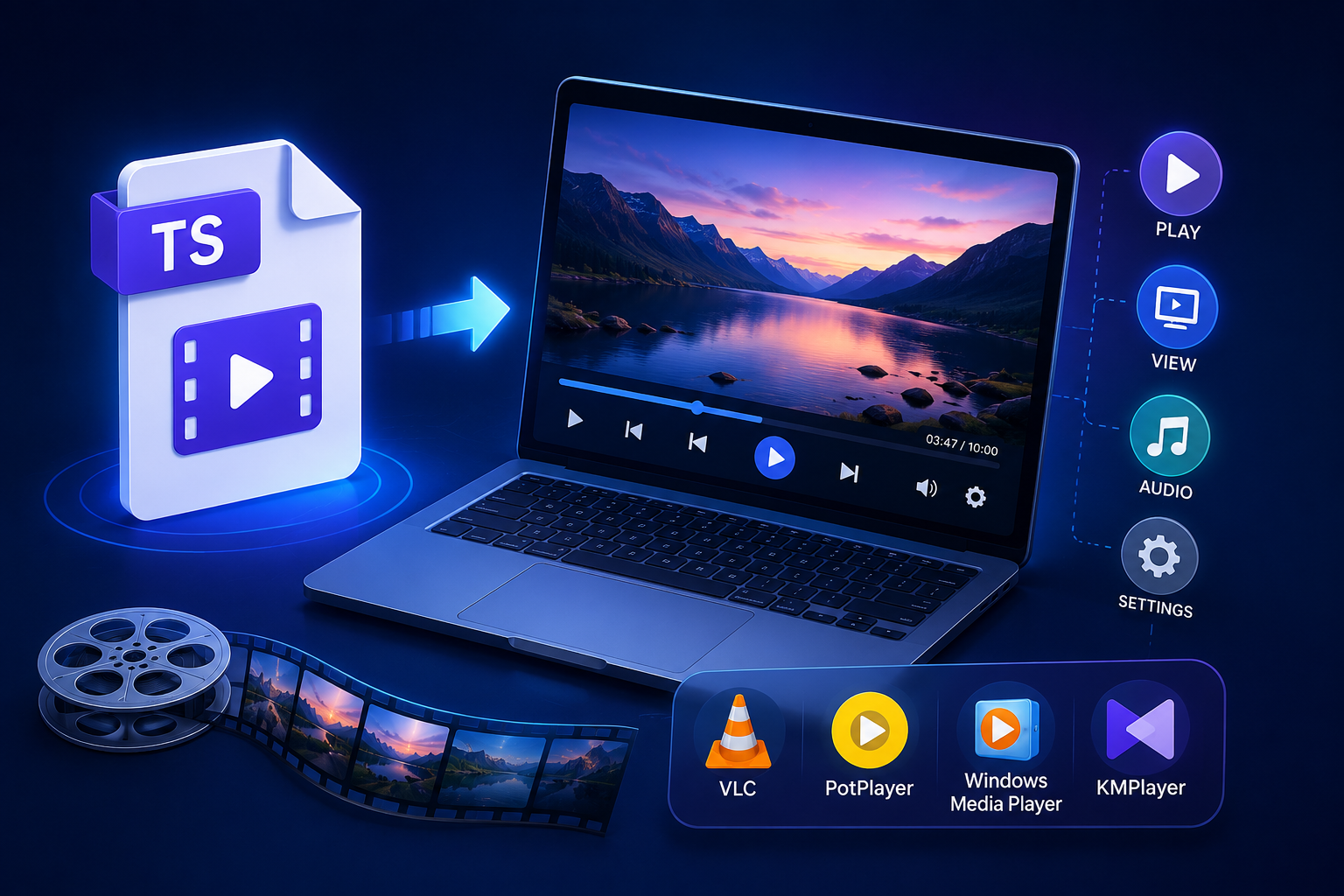
you’ve got a TS file on your computer, and you’re not sure what to do with it. You double-click it, and nothing happens or worse, your computer asks you what program to use. Sound familiar?
You might be thinking, “What exactly is a TS file, and how do I open it?” Don’t worry you’re not alone.
TS files aren’t as common as MP4 or AVI, but they’re used in specific situations, especially for high-definition video recordings. AhaConvert is here to help you understand and work with these files, whether you want to play them or convert them to something more universal.
In this guide, we’ll explain what a TS file is, why you might have one, and most importantly, how to open and play it on your device. We’ll also show you an even simpler option: converting your TS file to a more common format like MP4.
What Is a TS File?
TS stands for Transport Stream, and it’s a file format used for storing and transmitting video, audio, and data. It’s commonly used for:
- Digital television broadcasts like the ones you get from an antenna or cable
- DVR recordings some set-top boxes and PVRs save shows in TS format
- High-definition video TS files can handle HD and even 4K content
One thing to consider: TS files aren’t designed to be user-friendly. They’re made for streaming and broadcasting, which means they don’t always open easily on regular media players.
But here’s the good news: with the right tools, you can open and play TS files on any device.

How to Open a TS File on Windows
Method 1: Use VLC Media Player (Recommended)
VLC is our top recommendation for opening TS files. It’s free, reliable, and handles almost every video format out there.
Here’s how to do it:
- Download and install VLC Media Player from the official website (it’s free)
- Open VLC
- Go to Media > Open File
- Navigate to your TS file and select it
- Click “Open” and the file will start playing
That’s it! VLC handles TS files without any extra plugins or settings.
A quick tip: you can also drag and drop your TS file directly into the VLC window. It’s even faster.
Method 2: Use Windows Media Player with Codecs
Windows Media Player doesn’t support TS files out of the box. But you can install a codec pack like the K-Lite Codec Pack to add support.
After installing the codec pack, Windows Media Player should be able to play your TS files. However, we still recommend VLC for its simplicity and reliability.
How to Open a TS File on Mac
Mac users, you have options too. Here’s how to open TS files on macOS:
Method 1: Use VLC Media Player (Again!)
VLC works on Mac as well, and it’s just as good. Follow the same steps as above:
- Download VLC from the official website
- Open the app and go to File > Open File
- Select your TS file and click “Open”
- The video will start playing
Method 2: Use IINA Player
IINA is a modern media player built specifically for macOS. It supports TS files and offers a clean, user-friendly interface.
- Download IINA from its official website
- Install and open the app
- Drag your TS file into the IINA window
- The video will play immediately
Both VLC and IINA are excellent choices for Mac users.
How to Open a TS File on Android
Yes, you can open TS files on your Android phone or tablet too.
Method 1: Use VLC for Android
VLC is available on the Google Play Store, and it works great for TS files:
- Download VLC for Android from the Play Store
- Open the app
- Tap the “Browse” button and navigate to your TS file
- Tap the file to start playing
Method 2: Use MX Player
MX Player is another popular Android video player that supports TS files:
- Download MX Player from the Play Store
- Open the app and navigate to your TS file
- Tap the file to play it
Both options work well, though VLC is our top recommendation for its reliability.
How to Open a TS File on iPhone or iPad
iOS devices can also play TS files with the right app.
Use VLC for iOS
- Download VLC for iOS from the App Store
- Open the app
- Tap the “Network” or “Files” tab to locate your TS file
- Tap the file to play it
You can also transfer TS files to your iPhone using iTunes File Sharing or cloud storage like iCloud Drive.
What If the Video Is Corrupted or Won’t Play?
Sometimes TS files become corrupted or damaged. This can happen due to:
- Interrupted file transfers
- Incomplete downloads
- Issues with the recording device
If your TS file won’t play, you might need to repair it or convert it to a more stable format. AhaConvert can help with conversion, even for somewhat problematic files.
The Easy Alternative: Convert TS to MP4
Here’s something to consider: instead of trying to open a TS file with special software, you could convert it to a universal format like MP4. MP4 works on every device, every media player, and every platform no fuss, no hassle.
AhaConvert offers a free online TS Converter that makes this simple:
- Upload your TS file to our TS Converter
- Select MP4 as your output format
- Click “Convert” and wait a few seconds
- Download your new MP4 fill
Once converted, your video will play anywhere. On your phone, tablet, computer, or smart TV it just works.
Converting is especially useful if you need to share the video with others. You don’t want to ask your friends to download special players. MP4 is universally supported.
TS vs. Other Formats: What’s the Difference?
To help you understand TS files better, here’s a quick comparison:
| Format | Best For | Compatibility | Key Features |
| TS (Transport Stream) | Broadcasts, DVRs | Low to medium | Error correction, streaming-friendly |
| MP4 | General use | Excellent | Universal, efficient compression |
| AVI | Older systems | Medium | Large file size, limited codec support |
| MKV | HD video | Medium to high | Multiple audio/subtitle tracks |
TS files are great for broadcasting but not always ideal for everyday viewing. MP4 is generally a better choice for personal use.
Frequently Asked Questions
Q1: What program opens TS files?
VLC Media Player is the most recommended program for opening TS files. It’s free, works on all platforms, and supports TS files without any extra codecs or plugins.
Q2: Can VLC play TS files?
Yes, absolutely. VLC plays TS files effortlessly on Windows, Mac, Linux, Android, and iOS. Just open the file in VLC and it will start playing immediately.
Q3: How do I convert TS to MP4?
You can use AhaConvert’s TS Converter to convert TS files to MP4. The process is simple: upload your TS file, select MP4 as output, and download the converted file in seconds.
Q4: Is a TS file just video or does it have audio too?
A TS file can contain both video and audio streams. In fact, it can also contain metadata and multiple audio tracks. VLC will handle both video and audio without any extra setup.
Q5: Why can’t I open my TS file on my phone?
Some phones don’t support TS files by default. You’ll need a third-party player like VLC or MX Player. Alternatively, you can convert the TS file to MP4 using AhaConvert for instant compatibility.
Conclusion
Opening a TS file doesn’t have to be complicated. With VLC Media Player, you can play TS files on any device, Windows, Mac, Android, iPhone, you name it. It’s free, reliable, and handles TS files without any extra setup.
But if you want the simplest experience possible, converting your TS file to MP4 is the way to go. AhaConvert makes it fast and free with our online TS Converter . No software to download, no accounts to create, just upload, convert, and download your new MP4 file.
Ready to open your TS file? Try VLC for free, or convert it with AhaConvert for universal compatibility. It’s quick, easy, and works on every device!