Every creator eventually faces the same editing dilemma: should you remove something from a photo, or remove the entire background?
A product image may need a transparent PNG for an online store. A travel photo may only need a tourist removed from the corner. A YouTube thumbnail might require a clean subject cutout, while an Instagram post simply needs a distracting object erased.
Although many editing apps claim to do everything, most creators repeatedly need just two outcomes:
- A transparent subject cutout that can be reused anywhere.
- A cleaned-up photo that keeps the original scene intact.
This is where BgEraser and Object Remover fit into a modern creator workflow. Rather than overlapping, they solve different editing challenges and often work best together.
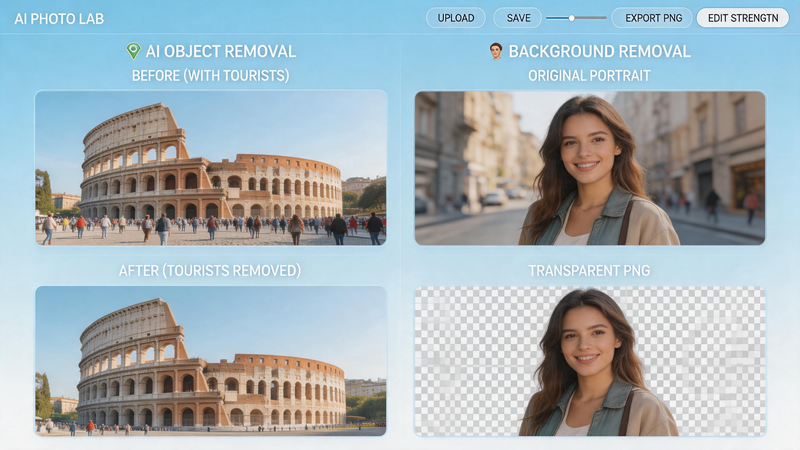
The Two Most Common Editing Tasks
Before choosing a tool, it helps to identify your goal.
Scenario A: You Want to Keep the Original Photo
The photo itself is good.
You simply want to remove:
- People in the background
- Text overlays
- Logos
- Power lines
- Trash bins
- Product imperfections
- Small distractions
In this case, the environment matters and should remain visible.
Scenario B: You Only Need the Subject
The original background no longer serves a purpose.
Instead, you want:
- A transparent PNG
- A product cutout
- A profile photo
- A sticker graphic
- A design asset
In this case, keeping the original background creates unnecessary work.
Understanding this distinction immediately tells you which tool to use.

BgEraser: Create Transparent PNG Cutouts in Seconds
BgEraser is an AI-powered background removal tool designed to automatically isolate the main subject from any image and create transparent PNG cutouts with high precision. Whether the image contains a person, product, pet, logo, or any other object, the tool detects the subject and removes the background entirely while preserving clean edges and fine details.
The output is a ready-to-use transparent PNG cutout that can be directly imported into design tools, e-commerce listings, presentations, or social media content. Users can also choose to export the subject with a solid color background when transparency is not required, making it a flexible solution for both creative and commercial workflows.
Key Features
- One-click AI background removal
- Automatic subject detection
- High-quality edge refinement
- Transparent PNG export
- Optional solid background replacement
- Batch processing for up to 20 images
- Browser-based workflow
- No account required
- Fast cloud processing
- Privacy-friendly file handling
Best For
- Product photography
- E-commerce catalogs
- LinkedIn profile pictures
- Team page headshots
- Sticker packs
- Marketing graphics
- Presentation assets
- Social media thumbnails
How BgEraser Works
Step 1: Upload Your Images
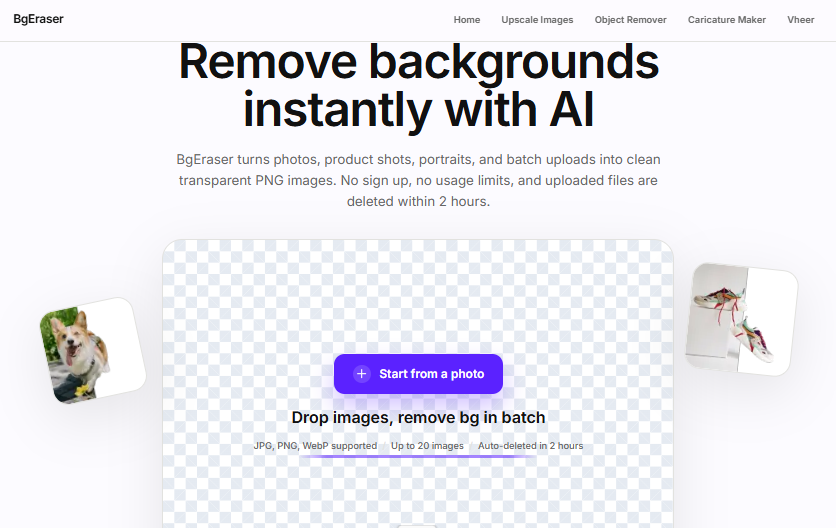
Drag and drop one image or upload multiple files at once.
Batch mode supports up to 20 images, making it useful for product catalogs and team photo updates.
Step 2: Automatic Background Removal
The AI identifies the primary subject and removes the surrounding background automatically.
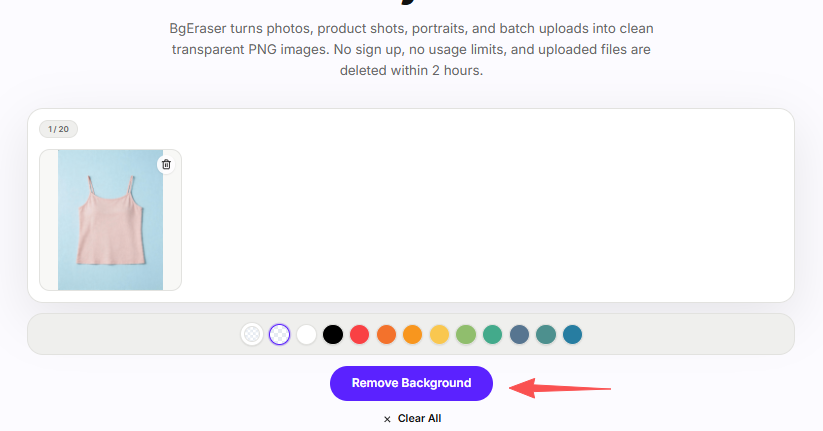
No manual masking or selection is required.
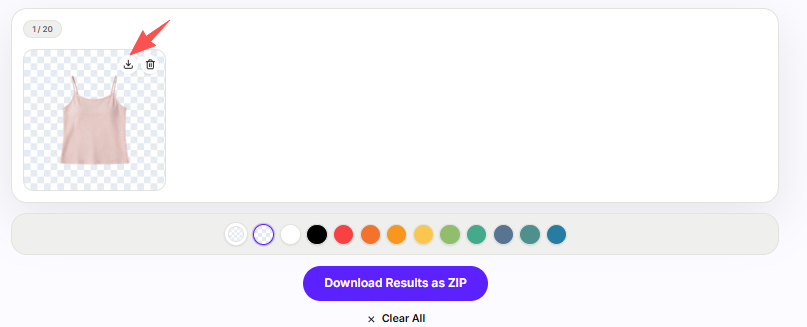
Step 3: Export Your Cutout
Choose whether to keep transparency or apply a solid background color.
Download the final PNG file or export multiple files as a ZIP archive.
Object Remover: Remove Distractions Without Losing the Scene
Object Remover focuses on a different challenge.
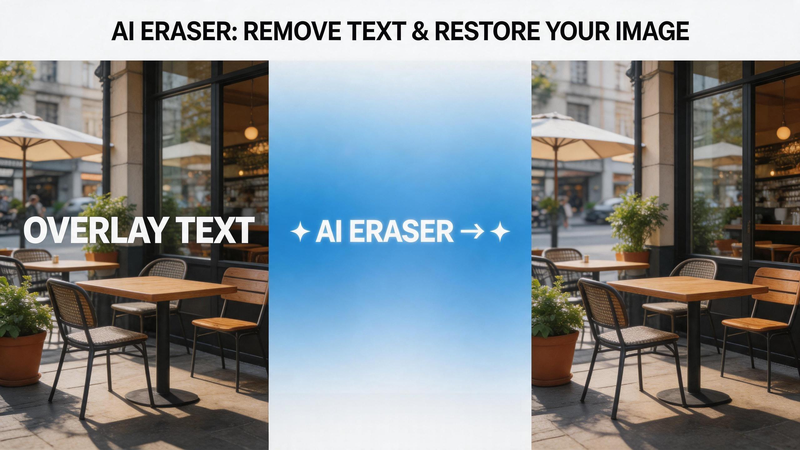
Instead of removing the entire background, it removes specific objects inside the image while preserving everything else.
The tool uses AI inpainting to reconstruct selected areas naturally. Users simply mark the unwanted object, and the AI fills the gap using surrounding textures, colors, and lighting.
Key Features
- Brush-based object selection
- Optional prompt-assisted removal
- AI-powered image reconstruction
- Natural texture and color blending
- Fast browser-based editing
- Supports JPG, PNG, and WebP
- Unlimited free usage
- No sign-up required
- Instant preview generation
- Automatic file cleanup for privacy
Best For
- Travel photography
- Food photography
- Real estate images
- Social media content
- Lifestyle photography
- Screenshots
- Marketing visuals
- Product cleanup
How Object Remover Works
Step 1: Upload a Photo
Select a JPG, PNG, or WebP image from your device.

Step 2: Mark the Distraction
Brush over the object you want removed, such as:
- People
- Text
- Logos
- Signs
- Wires
- Shadows
- Background clutter
Step 3: Generate the Result
The AI reconstructs the selected area while maintaining the surrounding scene.
Step 4: Download
Preview the edit and export the cleaned image.
Which Tool Should You Use?
The easiest way to decide is to ask a simple question:
Does the background matter?
If the answer is yes, use Object Remover.
If the answer is no, use BgEraser.
Real Creator Workflows
YouTube Thumbnail Production
A creator records a video and needs a bold thumbnail.
Use BgEraser to isolate the creator from the original room background, then place the cutout on a branded design template.
Recommended Tool
BgEraser

Travel Content Publishing
A photographer captures a beautiful landmark, but several tourists appear in the frame.
Removing the people while keeping the destination visible creates a much stronger image.
Recommended Tool
Object Remover
E-commerce Product Launch
An online store needs:
- Transparent product cutouts
- Lifestyle product photos
BgEraser creates the product PNGs.
Object Remover cleans small distractions from lifestyle shots.
Recommended Tools
BgEraser + Object Remover
Corporate Team Page
A company updates employee headshots for its website.
The office backgrounds are inconsistent, but the portraits themselves are usable.
Recommended Tool
BgEraser
Food Photography
A restaurant wants to remove utensils, receipts, or packaging from a table scene without changing the atmosphere of the image.
Recommended Tool
Object Remover
Quick Comparison
| Task | BgEraser | Object Remover |
| Create transparent PNGs | ✓ | ✗ |
| Remove background entirely | ✓ | ✗ |
| Batch process multiple images | ✓ | ✗ |
| Remove tourists from photos | ✗ | ✓ |
| Remove logos or text | ✗ | ✓ |
| Clean travel photography | ✗ | ✓ |
| Fix product photo distractions | ✗ | ✓ |
| Prepare assets for design software | ✓ | △ |
Why Using Both Tools Makes Sense
Many creators waste time trying to force one editor to solve every problem.
In reality, transparent cutouts and photo cleanup are different tasks that require different approaches.
BgEraser specializes in subject isolation and transparent exports.
Object Remover specializes in scene preservation and distraction removal.
Together, they cover the majority of image editing needs for content creators, marketers, photographers, online sellers, and designers.
Final Takeaway
The fastest editing workflows start with choosing the correct output.
Need a transparent PNG for a design, thumbnail, product listing, or profile photo? Use BgEraser.
Need to keep the original photo but remove an unwanted object, person, logo, or distraction? Use Object Remover.
By treating transparent cutouts and image cleanup as separate tasks, creators can produce cleaner visuals, work more efficiently, and avoid spending hours in complex editing software.