I started streaming Valorant about a year ago. My setup was decent, my gameplay was solid, but something felt flat. Viewers would drop off midstream, and chat would stay quiet.
A friend suggested trying a voice changer, not to hide my identity, but to add energy and variety to the stream.
That suggestion led me to iTop Voicy, a free real-time voice changer for PC, and it genuinely changed how I approach live content.
What Is iTop Voicy?
iTop Voicy for PC is a free voice changer software for Windows (10 and 11) that modifies your voice in real time during streams, game sessions, calls, or recordings.
It works with platforms like OBS, Discord, Twitch, Zoom, and more; no complicated routing or third-party audio plugins needed.
The tool uses AI-based voice modulation to shift your pitch, tone, gender, and style while keeping output latency low.
Beyond live use, it also handles audio and video file voice conversion and includes a recording mode with built-in noise reduction.
How I Set It Up (Step by Step)
Step 1: Download and Install
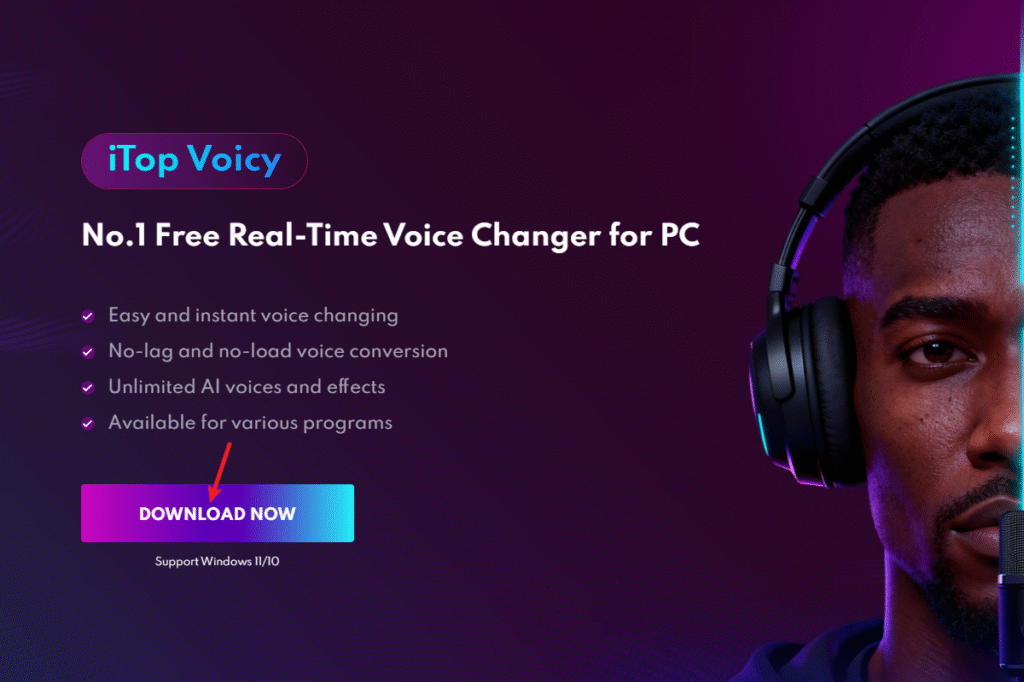
I downloaded iTop Voicy directly from the official website. Installation took under two minutes. No bloatware, no forced account creation upfront.
Step 2: Select Your Input and Output Devices
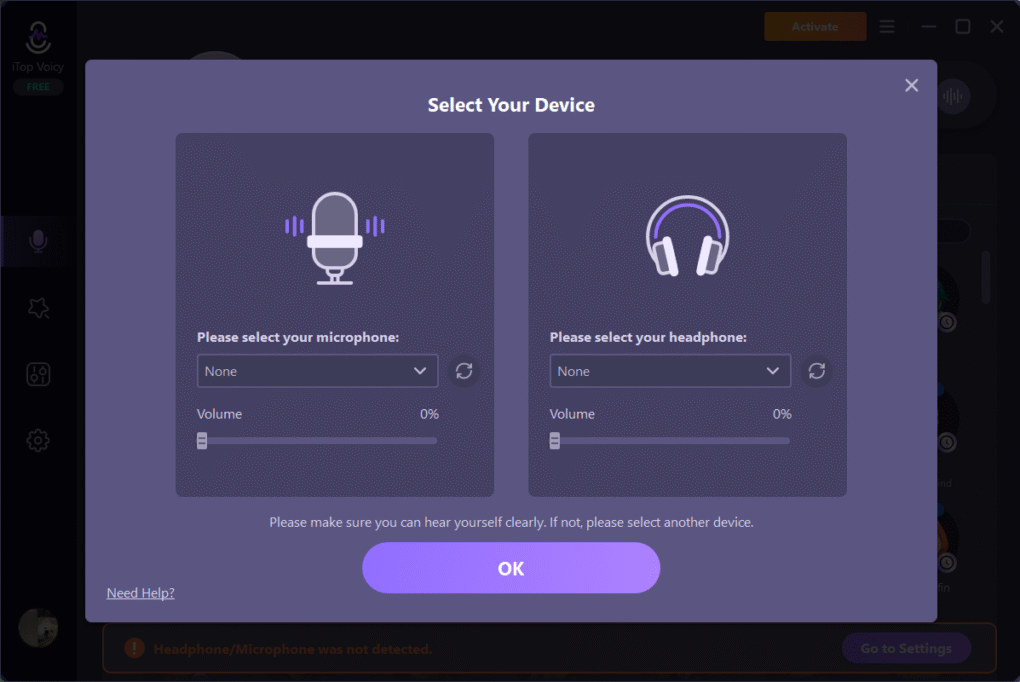
After launching, the interface asked me to pick my microphone as the input device and set the output to “iTop Voicy Virtual Microphone.” This virtual device is what OBS and Discord pick up instead of your real mic.
Step 3: Pick a Voice or Effect
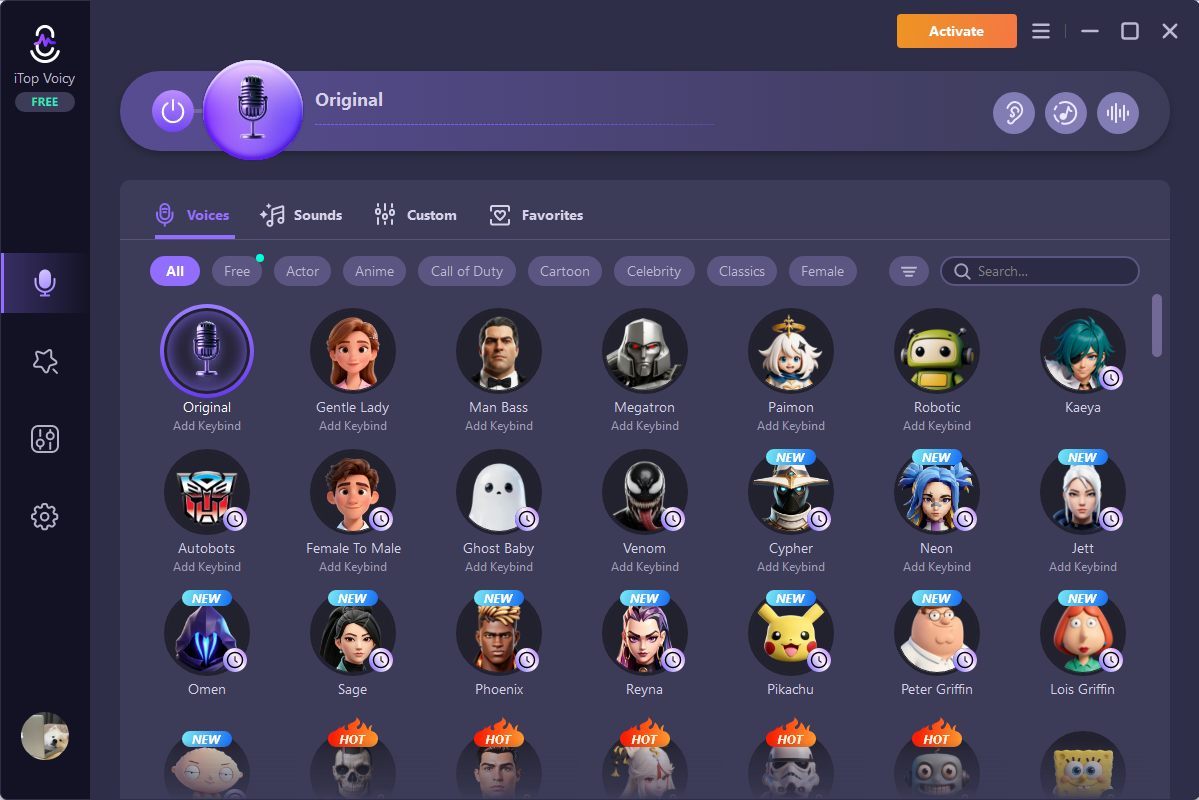
The AI voice library has a wide range of options, male, female, child, robotic, character voices, and more. I browsed the library, previewed a few, and picked a deep robotic voice for game intros and a high-pitched character voice for lighter moments.
You can also add sound effects like crowd cheers, alerts, or environmental sounds on top of your voice.
Step 4: Set It as Your Mic in OBS or Discord
In OBS, I went to Settings > Audio and changed the microphone source to “iTop Voicy Virtual Microphone.” In Discord, I did the same under Settings > Voice & Video. From that point, everything the tool processed came through live, no delay, no echo.
What I Actually Liked
- No noticeable lag. The voice conversion happened fast enough that my lips and audio stayed in sync.
- The voice library is large. There are enough options to keep things fresh across different streams without repeating the same effect.
- Custom voice creation. I imported a voice clip and adjusted pitch, timbre, and speed to build a character voice I use regularly. You can name and save these for quick access.
- Noise reduction works. My room is not studio-quiet, and the built-in audio enhancer removed keyboard noise and background hum without me doing anything extra.
- Compatible with most platforms. I tested it with OBS, Discord, and Zoom, all picked up the virtual mic without issues.
What Could Be Better
- Windows only: iTop Voicy runs on Windows 10 and 11. Mac users have no option here.
- No mobile version: If you stream from a phone or tablet, this tool will not help you.
- Voice naturalness varies: Most voices sound clean, but a few of the more extreme options, very high-pitched or exaggerated effects, do not always hold up well across long sessions.
Is It Worth Using for Streams?
For streamers who want more audience interaction and variety without spending money on audio software, iTop Voicy is a solid starting point. I have used it across Valorant, Minecraft, and VRChat streams.
Chat engagement picked up noticeably once I started switching voices between rounds or using sound effects to react to in-game moments.
It is not a replacement for a good microphone or proper soundproofing. But layered on top of a reasonable audio setup, it adds something that straight gameplay rarely does: personality variation that keeps viewers curious about what comes next.
If you are on Windows and want to experiment without financial commitment, it is worth downloading and testing for a session or two. The setup time is short, and the free access means there is nothing to lose.
Bring New Energy to Your Live Streams
Streaming started to feel less repetitive and more creative once I added voice effects into the mix. It gave me new ways to react, joke, and keep viewers curious about what would happen next.
Small changes like this can make a real difference in how your audience experiences your content. If you are looking to refresh your streams without overcomplicating your setup, try iTop Voicy and see how it changes your flow.