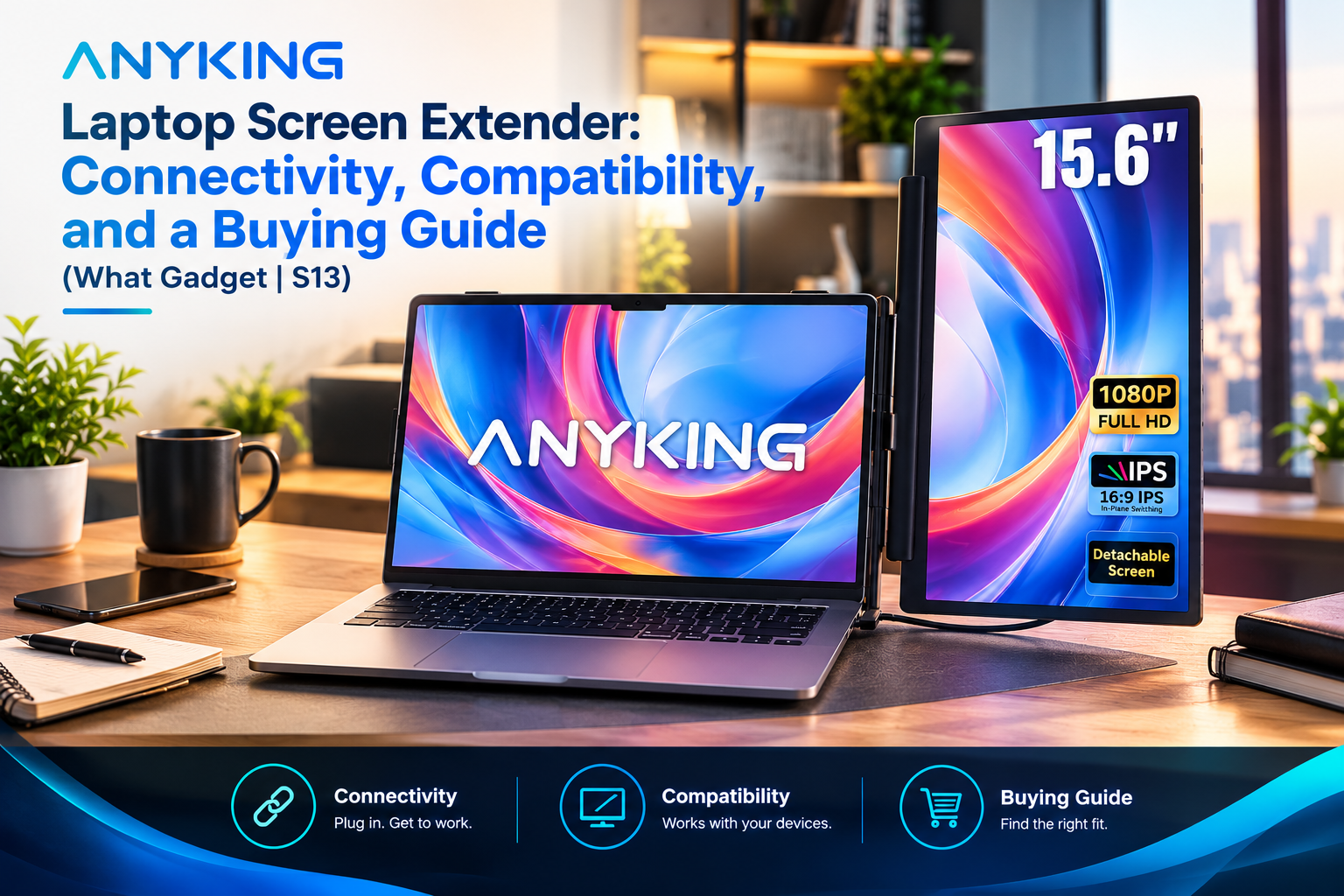
A laptop screen extender adds a second display to your laptop in seconds. Pick a USB-C portable monitor with video support, and it runs on one cable. Check your laptop port first.
A University of Utah study found that using two screens can raise productivity by up to 25 percent. That is why more people now add a laptop screen extender to their daily setup. Anyking makes portable screens for this exact need. In this What Gadget S13 episode, the focus is real use, smart connections, and a simple guide for buyers.
Why a Screen Extender for Your Laptop Feels Like a Game Changer
A small laptop display fills up fast. Email, chat, and a spreadsheet all fight for space. A second screen ends that fight.
Users drag one window to the new screen and keep working. The change feels small at first. Then it feels hard to live without.
Real Product Experience With a Portable Monitor for Laptop
A portable monitor for laptop use is easy to love. The screen is thin and light. Most models weigh less than two pounds. They slide into a backpack next to the laptop.
Setup takes about a minute. A user unfolds the stand, plugs in one cable, and sees the desktop appear. No driver hunt. No long manual.
Here is where the extra screen helps most:
- Remote work: Keep video calls on one screen and notes on the other.
- Travel: Turn a hotel desk into a real workspace.
- Study: Read a PDF while writing an essay.
- Creative work: Park toolbars on the side and give the canvas more room.
Everyday Comfort and Screen Quality
Good screens matter for tired eyes. Look for a Full HD panel, solid brightness, and wide viewing angles. A matte or anti-glare finish helps in bright rooms. Comfort counts as much as size.
Connectivity Made Simple for Any Laptop Screen Extender
Connection trouble causes most bad reviews. The fix is easy once the basics are clear.
How a USB-C Portable Monitor Connects
A USB-C portable monitor often needs just one cable. That cable carries video and power together. The laptop sends the picture, and the screen draws its power from the laptop.
There is one catch. The laptop’s USB-C port must support video output. Makers call this DisplayPort Alt Mode. Thunderbolt 3 and Thunderbolt 4 ports also work.
Check the port for a small display icon or a Thunderbolt bolt. If you see neither, read the laptop’s spec sheet. Some USB-C ports only move data and charge the battery.
Backup Options When the Port Falls Short
Not every laptop has the right USB-C port. Do not worry. Many screens also offer a mini HDMI input. Pair it with a USB power cable, and the screen still works.
Keep these tips in mind:
- Use the cable that came in the box.
- Plug into a port that supports video first.
- Use a wall adapter if the laptop battery drains fast.
Compatibility Check for Mac and Windows Laptops
A laptop screen extender for Mac and Windows should work with both. Still, each system has its own small rules.
What Mac Users Should Know
Most modern MacBooks work well with USB-C screens. Some base-model Macs support only one external display. That is fine for a single extender. Check Apple’s tech specs before you plan a three-screen desk.
What Windows Users Should Know
Windows 10 and Windows 11 detect a second screen on their own. Press Windows key + P to pick a mode. Choose “Extend” to get more space.
| Feature | Mac | Windows |
| Plug and play | Yes, on most models | Yes, on most laptops |
| Port needed | USB-C with video or Thunderbolt | USB-C with video, Thunderbolt, or HDMI |
| Quick settings | System Settings > Displays | Windows key + P |
| Watch for | Display limits on base chips | USB-C ports without video |
Buying Guide: How to Choose the Right Laptop Screen Extender
Shopping gets easier with a short checklist. Follow these steps in order.
Why a 15.6 Inch Portable Monitor Is the Sweet Spot
A 15.6 inch portable monitor fits most laptop bags. It also matches the size of many popular laptops. Both screens then look balanced side by side.
Smaller models save space but feel cramped. Larger ones add weight. The 15.6 inch size gives a fair mix of room and comfort.
Key Features to Compare Before You Buy
Compare these points before paying:
- Resolution: Pick Full HD or higher for sharp text.
- Ports: Look for two USB-C ports and one mini HDMI.
- Weight: Aim for under two pounds for easy travel.
- Stand: A built-in or foldable cover stand saves clutter.
- Warranty: A longer warranty shows the maker trusts the product.
Building a Dual Monitor Setup for Laptop Users
A dual monitor setup for laptop use does not need a big desk. Place the portable screen beside the laptop. Match the screen heights. Raise the laptop on a stand if needed.
Keep the main task on the larger view. Move chat apps and reference files to the side. This small habit saves hours each week.
Common Mistakes to Avoid
Many buyers skip the port check. Others buy the cheapest option and ignore brightness. Do not repeat those errors. Read the specs, then buy with confidence.
Ready to Upgrade Your Workspace? Pick Your Screen Today
A good screen extender changes how you work. It gives you space, speed, and less stress. You just need the right port, the right size, and a clear plan.
Anyking offers portable USB-C screens built for work, play, and travel. Visit anyking.com to compare models and find the best fit for your laptop. Your next big productivity boost may be one cable away.