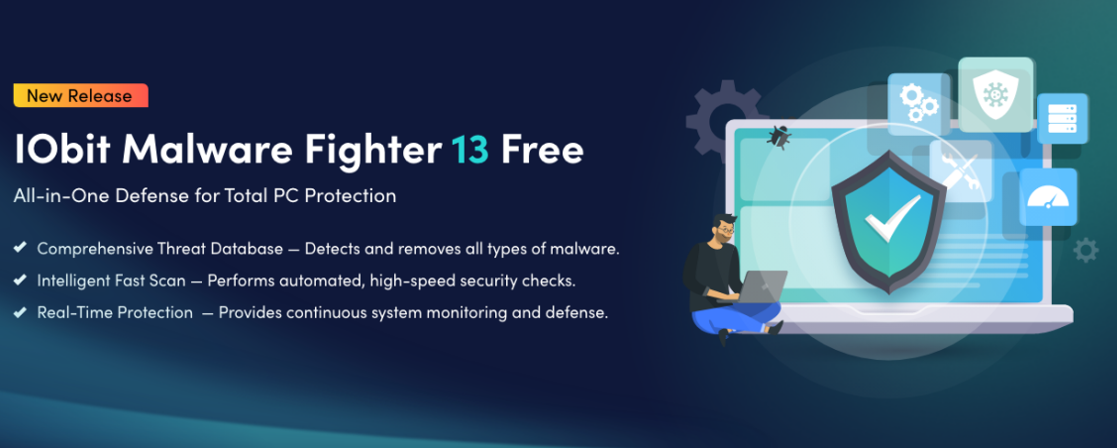
In today’s digital landscape, malware threats are more advanced and aggressive than ever. From ransomware and spyware to phishing attacks and cryptominers, a single lapse in protection can compromise sensitive data, system performance, and personal privacy. That’s why choosing a robust security solution—and configuring it correctly—is essential. This step-by-step guide will walk you through how to set up IObit Malware Fighter 13 for maximum protection, ensuring your PC stays secure without sacrificing performance.
Why Choose IObit Malware Fighter 13?
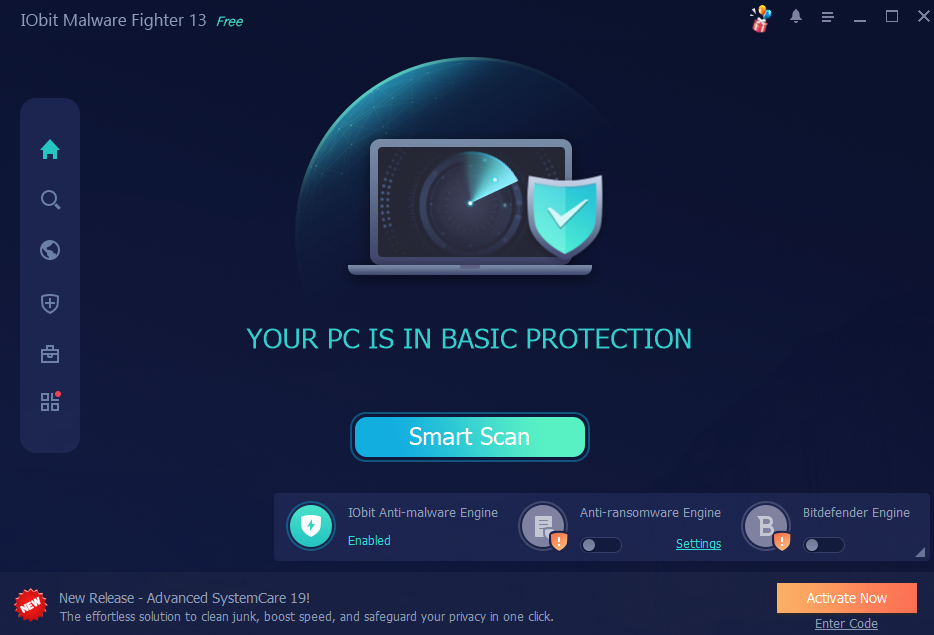
Before diving into the setup process, it’s worth understanding what makes IObit Malware Fighter 13 stand out. This powerful anti-malware solution developed by IObit combines a massive malware database with a dual-engine approach that includes Bitdefender’s award-winning engine (in the Pro version). It offers real-time protection against malware, ransomware, spyware, trojans, and zero-day threats, along with browser protection and privacy safeguards.
However, simply installing the software isn’t enough. Proper configuration is key to unlocking its full protective potential.
How to Use IObit Malware Fighter 13 for Maximum Protection?
Step 1: Download and Install IObit Malware Fighter 13
Begin by downloading the latest version from the official IObit website to avoid counterfeit or tampered installers.
Installation tips:
- Close unnecessary applications before installing to avoid conflicts.
- During installation, review optional offers and uncheck any additional software you don’t need.
- Choose the default installation path unless you have a specific reason to change it.
Once installed, launch the program to begin the initial setup.
Step 2: Update the Malware Database Immediately
One of the most critical steps after installation is updating the malware database. Cyber threats evolve daily, and outdated definitions can leave your system vulnerable.
How to update:
- Open the program dashboard.
- Navigate to the Update section.
- Click Check for Updates and wait for the process to complete.
Make sure automatic updates are enabled so the software stays current without manual intervention.
Step 3: Enable Real-Time Protection Modules
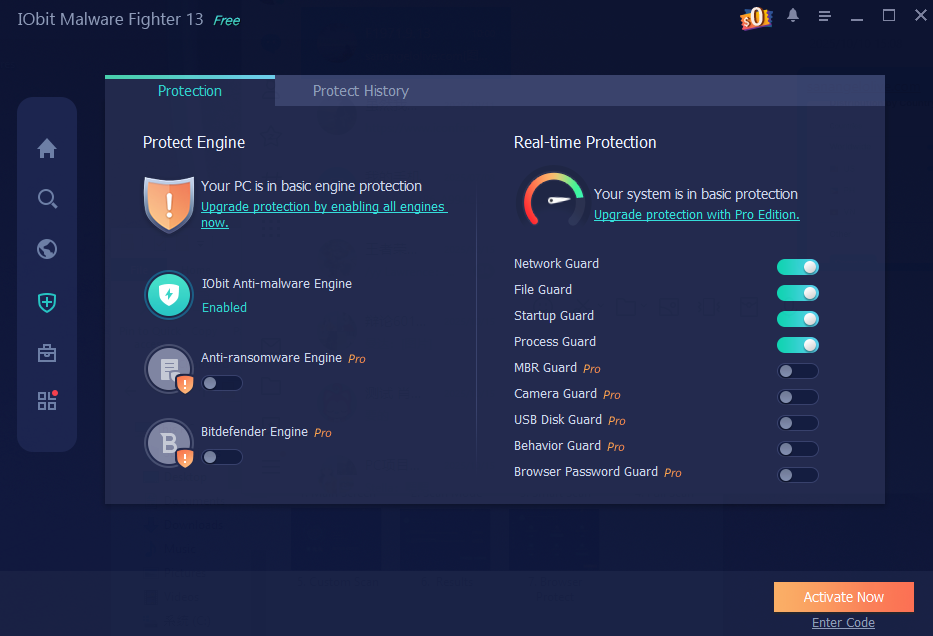
Real-time protection is the backbone of any security solution. IObit Malware Fighter 13 includes multiple protection modules that should all be enabled for maximum safety.
Key modules to activate:
- Malware Protection – Blocks viruses, trojans, and spyware in real time.
- Ransomware Protection – Prevents unauthorized encryption of files.
- USB Disk Guard – Scans removable devices to stop infections from external drives.
- Process Guard – Monitors running processes for suspicious behavior.
To enable these, go to Settings > Protection and ensure all modules are toggled on.
Step 4: Activate Browser and Online Protection
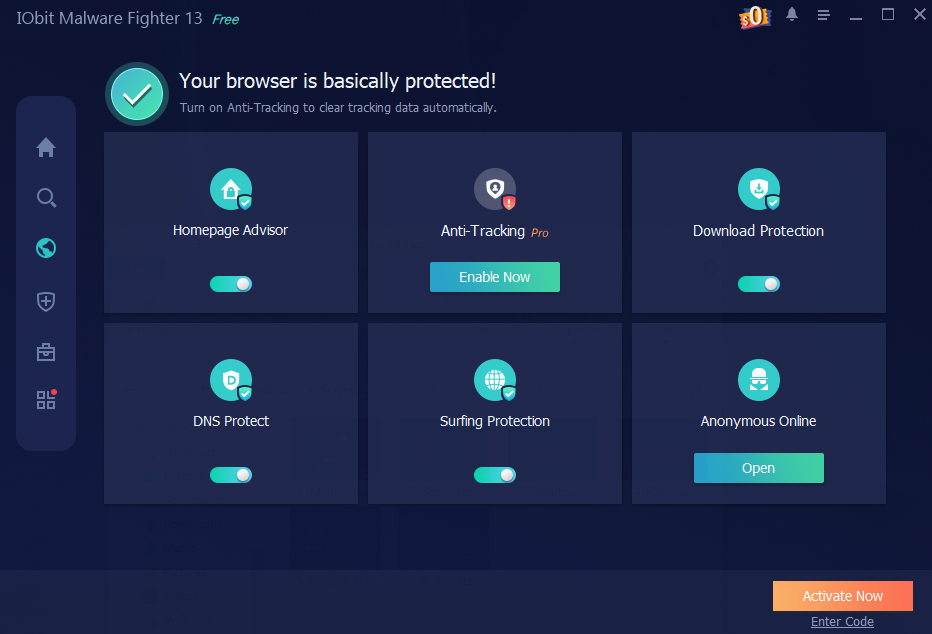
Online threats such as phishing websites, malicious ads, and tracking cookies pose serious risks. IObit Malware Fighter 13 offers strong browser protection features that many users overlook.
Recommended settings:
- Enable Browser Protect to block malicious extensions and homepage hijackers.
- Turn on Anti-Tracking to prevent websites from collecting personal data.
- Activate Surfing Protection & Ads Removal to block dangerous URLs and intrusive ads.
If you use multiple browsers, make sure protection is enabled for each one.
Step 5: Configure Scheduled Scans
Even with real-time protection active, scheduled scans provide an additional layer of security by detecting dormant threats.
Best practices for scans:
- Set a Full Scan once a week for comprehensive protection.
- Schedule a Quick Scan every 1–2 days to catch common threats.
- Run scans during low-usage hours to minimize system impact.
You can configure this under Scan > Schedule Scan.
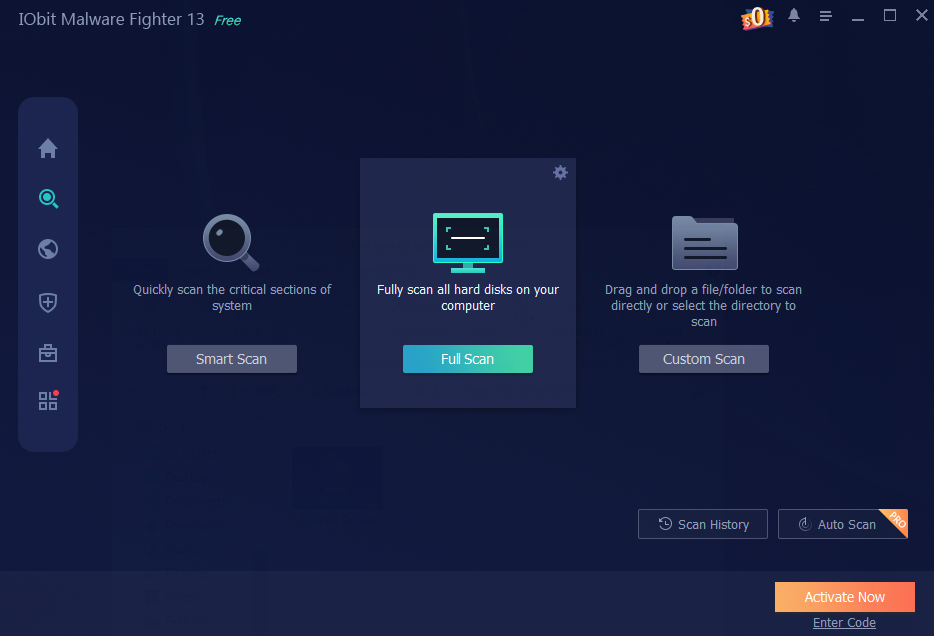
Step 6: Customize Ransomware Protection
Ransomware is one of the most damaging forms of malware. IObit Malware Fighter 13 allows you to customize ransomware protection by controlling which applications can access sensitive folders.
Advanced tips:
- Add folders containing important documents, photos, and backups to the protected list.
- Use the Safe List feature to allow only trusted applications.
- Monitor blocked attempts and review logs regularly.
This proactive approach dramatically reduces the risk of data loss.
Step 7: Enable Automatic Threat Handling
For users who prefer a “set it and forget it” approach, automatic threat handling is a must.
When enabled, the software will:
- Quarantine detected threats automatically
- Prevent suspicious actions without prompting
- Reduce the risk of accidental user errors
This setting is especially useful for non-technical users or shared computers.
Step 8: Review Quarantine and Logs Periodically
Maximum protection also means staying informed. Reviewing quarantine files and security logs helps ensure nothing important was blocked accidentally.
What to check:
- Restore files only if you are 100% certain they are safe.
- Delete confirmed threats permanently.
- Review logs to identify repeated attack attempts or vulnerabilities.
This habit improves long-term security awareness.
Step 9: Optimize Performance Settings
Security shouldn’t slow down your system. IObit Malware Fighter 13 includes performance optimization options that balance protection and speed.
Optimization tips:
- Enable Silent Mode during gaming or presentations.
- Exclude trusted, high-performance applications if necessary.
- Adjust scan priority to low when multitasking.
Proper optimization ensures seamless protection without interruptions.
Step 10: Keep the Software Updated
Finally, always keep the program itself updated. Software updates often include:
- New threat detection methods
- Performance improvements
- Security patches for newly discovered vulnerabilities
Enable automatic program updates or check manually at least once a month.
Final Thoughts
Setting up IObit Malware Fighter 13 correctly transforms it from a basic anti-malware tool into a powerful, all-around security solution. By enabling real-time protection, configuring ransomware defenses, securing your browser, and scheduling regular scans, you create multiple layers of defense against modern cyber threats.
Whether you’re a casual user or a power user, following this step-by-step guide ensures that IObit Malware Fighter delivers maximum protection, peace of mind, and reliable performance—keeping your system safe in an increasingly dangerous digital world.